Does A Factory Reset Delete Everything On Your Phone
Does a factory reset delete everything on your phone? Yes, it wipes nearly all personal data, but some files may survive if not properly handled. This guide walks you through exactly what gets removed, what might linger, and how to back up safely. You will learn step-by-step tips to protect your photos, accounts, and important files before hitting that reset button.
You have probably stared at your phone screen and thought about hitting that factory reset button. Maybe it is slow. Maybe you are selling it. Or maybe it just feels like it has too much clutter. Either way, the big question is the same. Does a factory reset delete everything?
The short answer is yes, mostly. But the full answer is a bit more nuanced. A factory reset wipes your personal data, apps, and settings from the device. However, some data can survive in the cloud or on external storage. And in certain cases, deleted information can even be recovered with the right tools.
This guide breaks down everything you need to know. You will learn what a factory reset removes, what it might leave behind, and how to protect your important files. Whether you are resetting an Android phone or an iPhone, this article has you covered.
Let us walk through it together. By the end, you will feel confident and prepared to reset your device safely.
Key Takeaways
- A factory reset erases almost all personal data: apps, photos, messages, and settings are removed from the device.
- Cloud accounts and external storage may retain data: Google, iCloud, and SD cards can hold information even after a reset.
- Backing up before a reset is essential: you lose access to local files unless you save them first.
- Data recovery is sometimes possible: specialized tools can retrieve erased data under certain conditions.
- Resetting does not remove your Google or Apple ID: these accounts remain linked and must be managed separately.
- A soft reset differs from a factory reset: a soft reset simply restarts the device without deleting anything.
📑 Table of Contents
- What Happens When You Perform A Factory Reset
- Does A Factory Reset Delete Everything On Android Devices
- Does A Factory Reset Delete Everything On iPhones
- How To Back Up Your Phone Before A Factory Reset
- Can Deleted Data Be Recovered After A Factory Reset
- Common Mistakes People Make When Factory Resetting
- When Should You Factory Reset Your Phone
- Final Thoughts On Does A Factory Reset Delete Everything
What Happens When You Perform A Factory Reset
A factory reset is also called a hard reset or master reset. It restores your phone to its original out-of-the-box state. The device wipes all user-installed data and settings. It essentially turns back time to the moment you first turned the phone on.
But what exactly gets deleted? Let us break it down clearly.
Personal Data That Gets Removed
When you erase your phone through a factory reset, the following items are typically removed:
- All installed apps and their local data
- Photos, videos, and music stored on the device
- Text messages and call logs
- Contacts saved to the phone memory
- Downloaded files and documents
- Wi-Fi passwords and Bluetooth pairings
- System settings and custom configurations
- App cache and temporary files
That is a long list. It covers almost everything you see on your home screen and in your file folders. The reset process overwrites the data partitions on your phone. This makes the information very difficult to access through normal means.
What Stays After A Factory Reset
Here is where it gets interesting. A factory reset does not delete everything without a trace. Some data remains connected to your accounts or stored elsewhere.
Your Google account or Apple ID stays active. This means your emails, contacts synced to the cloud, and app purchase history remain intact. When you sign back into your phone after the reset, many of these items will re-download automatically.
Photos backed up to Google Photos or iCloud are safe. They live on remote servers, not on the phone itself. The same goes for files stored in Dropbox, OneDrive, or other cloud services. These are not touched by a device reset at all.
Data on a removable SD card usually survives too. Most phones do not format the SD card during a reset unless you choose to do so manually. This is an important detail many people overlook.
Does A Factory Reset Delete Everything On Android Devices
Android phones handle factory resets in a specific way. The process is designed to protect your privacy while also restoring the device to a clean state. But there are some important details to understand.
The Android Reset Process
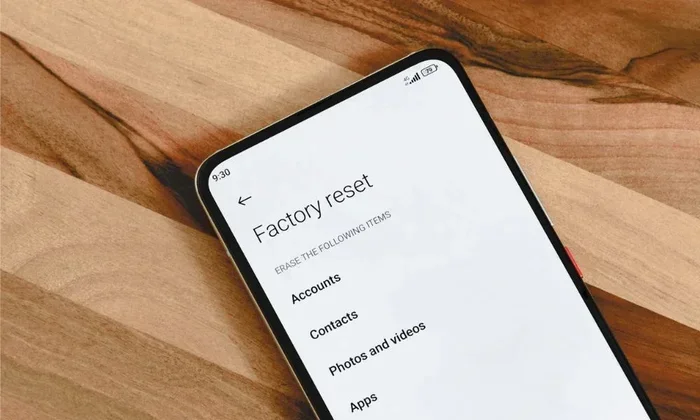
On most Android devices, you find the reset option under Settings, then System, then Reset Options. The exact path may vary depending on your phone brand. Samsung, Google Pixel, OnePlus, and other brands each have slightly different menus.
When you select “Erase all data,” the phone begins wiping the internal storage. It deletes your apps, personal files, and settings. The process can take anywhere from 10 minutes to over an hour, depending on how much data is on the device.
After the reset, the phone boots up like a brand-new device. You see the initial setup screen. This is where you create or sign into your Google account again.
Android-Specific Data That May Survive
Even after a full reset, certain types of data can remain on Android phones:
- Google account data: emails, calendar events, and Chrome bookmarks stored in the cloud
- SD card contents: photos and files on external storage are not automatically deleted
- Google Play purchase history: your bought apps and media remain tied to your account
- Google Photos backups: if auto-sync was enabled, your photos are safe in the cloud
Google has also introduced a feature called Factory Reset Protection, or FRP. This security measure locks the phone after a reset. It requires your Google account password to set the phone up again. This prevents thieves from easily wiping and reselling stolen devices.
Does A Factory Reset Delete Everything On iPhones
iPhones follow a similar but slightly different process. Apple designs its reset feature with privacy and security at the forefront. Understanding how iPhone resets work helps you feel more confident about the process.
The iPhone Reset Process
On an iPhone, you go to Settings, then General, then Transfer or Reset iPhone. From there, you select “Erase All Content and Settings.” The phone then begins the deletion process.
Apple uses a technique called data encryption. This means that when the reset happens, the encryption keys are destroyed. Without those keys, the data becomes essentially unreadable. This is different from simply deleting file references. It makes data recovery much harder on iPhones compared to many Android devices.
The process usually takes about 10 to 20 minutes. Once complete, the iPhone restarts and shows the Hello screen. You can then set it up as new or restore from a backup.
iPhone Data That May Survive
Just like Android, some data remains after an iPhone factory reset:
- iCloud backups: your photos, contacts, and messages stored in iCloud are untouched
- Apple ID purchases: apps, music, and movies bought through your Apple ID remain in your account
- Find My iPhone activation: this security feature stays linked to your Apple ID
- SIM card data: your carrier information and some contacts may remain on the SIM
Apple also requires your Apple ID password after a reset. This is part of the Activation Lock feature. It ensures that only the rightful owner can set up the device again. This is a strong privacy protection that works in your favor.
How To Back Up Your Phone Before A Factory Reset
Before you erase your phone, you need to back up your data. This is the most important step in the entire process. Without a proper backup, you could lose photos, messages, and files forever.
Backing Up On Android
Google Drive is your best friend here. Most Android phones automatically back up data to your Google account. You can check your backup status by going to Settings, then Google, then Backup. Make sure the backup is current before you reset.
For photos, open Google Photos and confirm that your images are synced. You can also manually download important files to a computer. Simply connect your phone with a USB cable and copy the files you want to keep.
If you use an SD card, consider removing it before the reset. This keeps your external storage completely separate and safe.
Backing Up On iPhone
iPhones offer two main backup options. You can back up to iCloud or to a computer using iTunes or Finder.
For iCloud, go to Settings, tap your name, then iCloud, then iCloud Backup. Tap “Back Up Now” and wait for it to finish. Make sure you have enough iCloud storage space. Apple gives you 5 GB free, which may not be enough for large photo libraries.
For a computer backup, connect your iPhone to a Mac or PC. Open Finder on macOS or iTunes on Windows. Select your device and click “Back Up Now.” This creates a complete local copy of your phone data.
Quick Tips For Backing Up
- Check your backup date and make sure it is recent
- Verify that your most important photos and files are included
- Save any documents or notes you want to keep
- Write down your app login passwords before you reset
- Remove your SIM card and SD card from the phone
Can Deleted Data Be Recovered After A Factory Reset
This is one of the most common questions people ask. And the answer is both reassuring and a little concerning. Yes, deleted data can sometimes be recovered after a factory reset. But it depends on several factors.
Why Recovery Is Sometimes Possible
When you erase your phone, the device does not always physically destroy the data. Instead, it marks the storage space as available for new data. The old data remains on the storage chip until it gets overwritten. This means recovery tools can sometimes piece together the old information.
Data recovery software like Dr.Fone, EaseUS MobiSaver, and DiskDigger can scan the phone storage for remnants of deleted files. These tools work best when used soon after the reset. The longer you wait and use the phone, the more the old data gets overwritten.
How To Make Recovery Impossible
If you are selling or giving away your phone, you want to be absolutely sure no one can recover your data. Here are some steps to take:
- Back up everything you need before the reset
- Remove your Google account or Apple ID before resetting
- Encrypt your phone before performing the reset
- After the reset, fill the storage with new data like large videos
- Perform a second factory reset after filling the storage
These steps make it extremely difficult for anyone to recover your old data. Encryption is especially important because it scrambles the data at a fundamental level.
Common Mistakes People Make When Factory Resetting
Many people rush through the reset process and make avoidable mistakes. Learning from these errors can save you a lot of trouble and frustration.
Forgetting To Sign Out Of Accounts
This is the number one mistake. If you do not sign out of your Google account or Apple ID before resetting, the phone may lock you out afterward. Factory Reset Protection and Activation Lock require your account credentials. If you forget them, the phone becomes essentially useless.
Always remove your accounts before resetting. On Android, go to Settings, then Accounts, and remove your Google account. On iPhone, go to Settings, then tap your name, and sign out of your Apple ID.
Skipping The Backup Step
It happens to the best of us. You get excited about a fresh start and forget to back up your photos. Then you realize that funny video from last summer is gone forever. Take the extra 15 minutes to back up. It is worth the peace of mind.
Not Checking The SD Card
If your phone has a removable SD card, the factory reset will not touch it. You might think your files are safe, but you could forget to copy them before giving the phone away. Always check and remove or back up SD card contents separately.
Assuming The Reset Is Instant
A factory reset takes time. It is not a quick restart. The phone may appear frozen during the process, but that is normal. Do not turn it off or remove the battery. Let it complete the full cycle. Interrupting the process can cause serious problems.
When Should You Factory Reset Your Phone
Not every phone problem requires a factory reset. But there are clear situations where it makes sense. Knowing when to reset helps you avoid doing it unnecessarily.
You should consider a factory reset if your phone is running extremely slowly and no other fix has worked. If apps crash constantly, the screen freezes often, or the device takes forever to respond, a reset can restore performance.
Selling or giving away your phone is another strong reason. You want to clear all your personal information before handing the device to someone else. A factory reset ensures the next user starts with a clean slate.
Malware or persistent software issues are also valid reasons. If your phone has been infected with a stubborn virus or app, a reset can eliminate the threat completely. Just make sure you have a backup of anything you need first.
Finally, if you are simply tired of your current phone setup and want a fresh start, a reset can help. It clears away digital clutter and lets you rebuild your phone exactly the way you want it.
Final Thoughts On Does A Factory Reset Delete Everything
So, does a factory reset delete everything on your phone? The answer is a clear yes for nearly all personal data stored locally. Your apps, photos, messages, and settings get wiped clean. The device returns to its original factory state, ready for a fresh start.
But remember, not everything is gone forever. Cloud accounts, external storage, and online purchases remain connected to your profiles. And in some cases, deleted data can be recovered with the right tools. This is why proper preparation before a reset is so important.
Take the time to back up your files, sign out of your accounts, and remove your SD card. These simple steps protect your privacy and your peace of mind. Whether you are resetting for performance, security, or to pass the phone along, doing it the right way matters.
A factory reset is a powerful tool. Use it wisely, and it gives your phone a new lease on life. Ignore the preparation steps, and you risk losing something important. Now you have the knowledge to reset with confidence. Go ahead and take control of your device.
Frequently Asked Questions
Will a factory reset remove my Google account from an Android phone?
No, a factory reset does not remove your Google account from the device. You will still need to enter your Google account password after the reset to set up the phone again. This is due to Factory Reset Protection, which keeps your account linked for security purposes. To fully remove your account, sign out manually before performing the reset.
Can someone recover my photos after I factory reset my phone?
In some cases, yes. Specialized data recovery tools can sometimes retrieve photos that were deleted during a factory reset. However, this becomes much harder if you encrypt your phone before resetting or if you fill the storage with new data afterward. For maximum privacy, follow the data destruction steps outlined in this guide.
How long does a factory reset take on a phone?
A factory reset typically takes between 10 and 30 minutes. The exact time depends on how much data is stored on the device and the phone’s processing speed. Do not interrupt the process or turn off the phone during the reset. Let it complete fully to avoid any issues with the device.
Does a factory reset delete WhatsApp messages?
Yes, a factory reset deletes all WhatsApp messages stored on your phone. However, if you have WhatsApp backups enabled in Google Drive or iCloud, your chats can be restored after you set up the phone again. Always check your WhatsApp backup status before performing a reset to avoid losing important conversations.
Is a factory reset the same as deleting everything from the cloud?
No, a factory reset only affects data stored locally on the device. It does not delete anything stored in the cloud such as Google Photos, iCloud, or other online services. Your cloud accounts remain fully active, and your backed-up data stays safe on remote servers.
Should I remove my SIM card before factory resetting my phone?
Yes, it is a good idea to remove your SIM card before performing a factory reset. The reset process does not touch SIM card data, but removing it protects your SIM from any accidental damage during the process. It also ensures you do not lose your carrier service while the phone is being reset.
=== CONCLUSION ===
Does a factory reset delete everything on your phone? Yes, it removes nearly all local data, but preparation is key to a safe and successful reset. By backing up your files, signing out of accounts, and understanding what survives the process, you protect yourself from data loss and privacy risks. Use the tips in this guide to reset with confidence and keep your information secure.