Can You Reboot A Smart Tv To Solve Streaming Problems
Yes, you can reboot a smart tv, and it is one of the fastest ways to fix streaming problems. A simple restart clears cached data, refreshes your network connection, and resolves most freezing or buffering issues. Whether you have a Samsung, LG, Sony, or TCL TV, the reboot process is quick and easy. This guide walks you through every method, from a basic power cycle to a full factory reset. By the end, you will know exactly how to get your smart tv streaming smoothly again.
You are sitting on the couch. The big screen is ready. You hit play on your favorite show. And then… the spinning wheel appears. Again. Streaming problems are frustrating, and they can ruin a perfectly good movie night. The good news is that a simple smart tv restart solves most of these issues. You do not need to be a tech expert. You do not need to call a repair person. You just need to know the right steps.
So, can you reboot a smart tv? Absolutely. In fact, rebooting your smart TV is the first thing you should try whenever streaming apps freeze, videos buffer endlessly, or the screen goes black. This guide covers every method you can use. From a quick power cycle to clearing cache and doing a full reset, you will learn it all. Let us get your TV working smoothly again.
Key Takeaways
- A soft reboot fixes most streaming issues in under a minute.
- A hard reboot (unplugging the TV) clears deeper software glitches.
- Clearing app cache after rebooting prevents future buffering.
- Updating TV software after a reboot keeps streaming apps running well.
- Checking your Wi-Fi is just as important as rebooting the TV itself.
- A factory reset should be your last resort for stubborn problems.
- Regular reboots keep your smart tv running at its best.
📑 Table of Contents
- Why Does Your Smart Tv Need a Reboot?
- How to Reboot A Smart Tv: The Easy Methods
- Common Streaming Problems a Reboot Fixes
- What to Do If a Simple Reboot Does Not Work
- When to Do a Factory Reset on Your Smart Tv
- Smart Tv Brands and Their Reboot Methods
- Quick Tips to Prevent Streaming Problems
- Expert Insights on Smart Tv Rebooting
- Key Takeaways
- Frequently Asked Questions
- Conclusion
Why Does Your Smart Tv Need a Reboot?
Smart TVs run on software, just like your phone or laptop. Over time, that software builds up temporary files. These files take up memory and slow things down. Your TV also connects to your home network constantly. Sometimes that connection gets stuck. A reboot clears all of that out and gives your TV a fresh start.
What Happens During a Reboot?
When you restart your smart tv, several important things happen behind the scenes. The system clears its short-term memory. It closes all running apps. It refreshes your network connection. It also reloads the TV’s operating system. Think of it like restarting your computer when it starts running slow. The same idea applies here.
Most streaming problems come from three common causes. The first is a full cache. The second is a weak Wi-Fi signal. The third is a software glitch. A reboot addresses all three of these issues in most cases. That is why it is always the first step in smart TV troubleshooting.
How to Reboot A Smart Tv: The Easy Methods
There are several ways to reboot your smart tv. Some take just a few seconds. Others take a little longer. Let us walk through each one so you can pick the method that works best for you.
Method 1: The Quick Restart
This is the fastest way to restart your TV. Most smart TVs have a built-in restart option in their settings menu. Here is how to do it.
- Press the Home button on your TV remote.
- Go to Settings or the gear icon.
- Look for System or General Settings.
- Select Restart or Reboot.
- Wait for the TV to turn off and back on.
This method works on Samsung, LG, Sony, and most other brands. It usually takes less than a minute. The TV shuts down and starts back up with a clean slate. This is the best first step whenever your streaming apps act up.
Method 2: The Power Cycle
A power cycle is a deeper reboot than the quick restart. It fully cuts power to the TV. This clears more temporary data and resets the hardware connections. Here is how you do it.
- Turn off the TV using the remote.
- Unplug the power cord from the wall outlet.
- Wait at least 60 seconds. Count slowly to 60.
- Plug the TV back in.
- Turn it on and check your streaming apps.
Waiting the full 60 seconds is important. It lets the TV’s internal components fully discharge. This clears any lingering electrical charge that might be causing glitches. Many people skip this step, but it makes a big difference for stubborn streaming problems.
Method 3: Using the Remote Power Button
Some people do not know this trick. You can use the remote to force a reboot on most smart TVs. Hold down the power button on the remote for about 10 seconds. The TV will turn off completely. Wait a few seconds, then turn it back on. This is a quick shortcut that works on many models.
Common Streaming Problems a Reboot Fixes
A reboot can solve a surprising number of streaming issues. Here are the most common problems that a simple restart fixes.
Buffering and Slow Loading
Buffering happens when your TV cannot keep up with the video stream. This is often caused by a weak connection or overloaded memory. A reboot refreshes both. After the restart, your TV reconnects to the Wi-Fi network with a clean connection. The apps also reload with fresh memory. This alone fixes buffering for many viewers.
Apps Freezing or Crashing
Have you ever opened Netflix or Hulu and the app just freezes? This is a very common problem. Apps build up temporary data over time. That data can cause them to crash. When you reboot your smart tv, all of that temporary data gets cleared. The apps start fresh and usually run much better.
No Sound or No Picture
Sometimes your TV will show no picture or no sound when streaming. This can be caused by a software error in the display or audio settings. A reboot resets these systems. Most of the time, the picture and sound come back right away after the restart.
Wi-Fi Connection Keeps Dropping
If your smart TV keeps losing its Wi-Fi connection, a reboot can help. The TV’s network adapter resets during the restart. It reconnects to your router with a fresh session. This often solves the dropping connection problem for good.
What to Do If a Simple Reboot Does Not Work
Sometimes a basic reboot is not enough. The streaming problem might be deeper. Here are the next steps you should take.
Check Your Internet Speed
Before you try anything else, check your internet speed. A slow connection is the number one cause of streaming problems. You can test your speed on your phone or computer. For HD streaming, you need at least 5 Mbps. For 4K streaming, you need at least 25 Mbps. If your speed is too low, a reboot will not fix the problem. You need to improve your connection first.
Clear App Cache and Data
After you reboot your TV, go into the app settings and clear the cache. Each app stores temporary files. Over time, these files build up and cause problems. Clearing them gives the app a fresh start. Here is how to do it on most smart TVs.
- Go to Settings.
- Find Apps or Application Manager.
- Select the problematic app.
- Choose Clear Cache and Clear Data.
This works on Samsung, LG, and most other brands. After clearing the cache, restart the app and see if the problem is gone.
Update Your TV Software
Old software can cause all kinds of streaming issues. Manufacturers release updates that fix bugs and improve performance. After you reboot your TV, check for updates. Go to Settings, then System, then Software Update. If an update is available, install it. This can solve many streaming problems that a simple reboot cannot.
Reset Your Router
Sometimes the problem is not your TV at all. It is your router. If your Wi-Fi is slow or unstable, your streaming will suffer. Try unplugging your router, waiting 30 seconds, and plugging it back in. This resets your home network and often fixes connection issues for your smart TV.
When to Do a Factory Reset on Your Smart Tv
A factory reset is the most drastic step. It erases all settings, apps, and data from your TV. You should only do this when nothing else works. But when it is needed, it can solve even the most stubborn problems.
How to Factory Reset Your Smart Tv
Go to Settings, then System, then Reset. Choose Factory Data Reset. The TV will erase everything and start fresh. You will need to set it up again from scratch. This includes reconnecting to Wi-Fi and signing into your streaming apps.
Do a factory reset only as a last resort. Make sure you know your Wi-Fi password and your streaming account login details before you start. Also, note that a factory reset does not delete any data stored on USB drives or external devices.
How Often Should You Reboot Your Smart Tv?
There is no strict rule for how often you should reboot your TV. Many experts recommend doing it once a week. This keeps the system running smoothly and prevents buildup of temporary files. Think of it like restarting your phone. A weekly reboot keeps everything running fast and prevents most common issues.
If you notice streaming problems, reboot immediately. Do not wait. The sooner you restart, the sooner you can get back to watching your favorite content. A quick reboot takes less than a minute and saves you a lot of frustration.
Smart Tv Brands and Their Reboot Methods
Different TV brands have slightly different reboot methods. Here is a quick guide for the most popular brands.
| Brand | Reboot Path |
|---|---|
| Samsung | Settings > Support > Self Diagnosis > Restart |
| LG | Settings > All Settings > General > Restart |
| Sony | Settings > System > Restart > Restart (TV) |
| TCL | Settings > System > Power > Restart |
| Vizio | Menu > System > Reset & Admin > Restart |
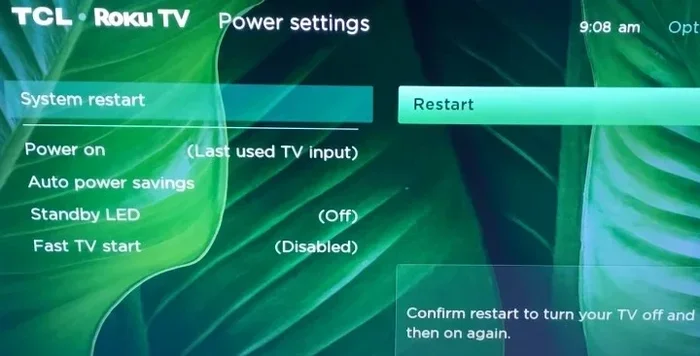
| Roku TV | Home > Settings > System > System Restart |
| Hisense | Settings > Device Preferences > Restart |
Each brand follows a similar pattern. You go to Settings, find System or General, and look for Restart. If you cannot find it, check your TV manual or search online for your specific model.
Quick Tips to Prevent Streaming Problems
Rebooting is great for fixing problems. But prevention is even better. Here are some simple tips to keep your smart TV streaming smoothly.
- Reboot your TV once a week. This clears memory and refreshes connections.
- Keep your TV software updated. Updates fix bugs and improve performance.
- Place your router close to the TV. A strong Wi-Fi signal prevents most streaming issues.
- Clear app cache regularly. This stops apps from building up too much data.
- Use an Ethernet cable if possible. A wired connection is faster and more stable than Wi-Fi.
- Close apps you are not using. Running too many apps at once slows down your TV.
- Restart your router monthly. This keeps your home network running well.
These simple habits go a long way. They keep your smart TV running fast and prevent most streaming problems before they start. You will spend less time troubleshooting and more time enjoying your favorite shows.
Expert Insights on Smart Tv Rebooting
TV technicians and IT professionals agree on one thing. A reboot should always be your first step when something goes wrong. It is the simplest fix and it works more often than people realize. Many people jump straight to calling support or replacing hardware. But a reboot solves the problem in most cases.
Experts also recommend pairing your reboot with a few other steps. Check your internet speed. Clear your app cache. Update your software. Together, these steps cover almost every common streaming problem. If you follow this routine, you will rarely need help from a technician.
The bottom line is simple. Your smart TV is a computer. Computers need regular restarts to run well. Treat your TV the same way you treat your phone or laptop. Give it a fresh start regularly, and it will reward you with smooth, uninterrupted streaming.
Key Takeaways
- A soft reboot fixes most streaming issues in under a minute.
- A hard reboot (unplugging the TV) clears deeper software glitches.
- Clearing app cache after rebooting prevents future buffering.
- Updating TV software after a reboot keeps streaming apps running well.
- Checking your Wi-Fi is just as important as rebooting the TV itself.
- A factory reset should be your last resort for stubborn problems.
- Regular reboots keep your smart tv running at its best.
Frequently Asked Questions
How long does it take to reboot a smart tv?
A soft reboot usually takes less than a minute. A hard reboot (unplugging the TV) takes about two minutes, including the wait time. The actual process is very fast. You just need to be patient and let the TV fully restart before you start using it again.
Will rebooting my smart tv delete any of my data?
No, a normal reboot does not delete anything. Your apps, settings, and saved data all stay intact. A reboot only clears temporary files and refreshes the system. A factory reset is the only method that deletes your data, and you should only use that as a last resort.
How often should I reboot my smart tv?
Once a week is a good habit. This keeps your TV running smoothly and prevents most common issues. You should also reboot whenever you notice streaming problems. If your apps freeze or videos buffer, a quick restart is the first thing you should try.
Can I reboot my smart tv using my phone?
Some smart TV brands offer mobile apps that let you control your TV. Samsung has SmartThings, LG has LG ThinQ, and Sony has the TV SideView app. Through these apps, you can usually access a restart option. Check your TV manufacturer’s app to see if this feature is available for your model.
Why does my smart tv keep freezing even after a reboot?
If your TV keeps freezing after a reboot, the problem might be deeper. Check your internet speed first. A slow connection is the most common cause of repeated freezing. Also try clearing app cache and updating your TV software. If the problem persists, a factory reset may be needed.
Is it better to reboot or reset my smart tv?
A reboot is always the better first step. It is quick, safe, and fixes most problems. A reset (factory reset) erases all your settings and should only be used when nothing else works. Always try a reboot first and only move to a reset if the problem continues.
Conclusion
So, can you reboot a smart tv? Yes, and you should do it often. A smart tv restart is the simplest, fastest, and most effective way to fix streaming problems. It clears memory, refreshes your connection, and resolves most freezing and buffering issues. Whether you use the quick restart, a power cycle, or a remote shortcut, the process is easy and takes less than two minutes.
Remember that a reboot is just the beginning. Pair it with clearing app cache, updating software, and checking your Wi-Fi speed for the best results. Make rebooting your TV a weekly habit and you will spend far less time dealing with streaming headaches. Your TV will run smoother, your apps will load faster, and your movie nights will be much more enjoyable. Take a few minutes today to reboot your TV and feel the difference for yourself.