How Do I Prefer Wi Fi Calling On My Android Phone Now
Wi-Fi calling lets you make and receive calls over a wireless network instead of the cellular network. This guide shows you exactly how to prefer Wi-Fi calling on your Android phone in just a few taps. You will learn the settings, benefits, and quick fixes to never drop a call again.
Have you ever been in a basement or a dead zone where your phone shows no bars at all? You try to make a call and it just will not go through. That is where Wi-Fi calling comes in. It is a game changer for anyone who struggles with weak cellular signal but has a strong data connection nearby. In this guide, we will walk you through everything you need to know about how to prefer Wi-Fi calling on your Android phone. You will learn the exact steps, the benefits, and how to troubleshoot common issues.
By the end of this article, you will have your Wi-Fi calling settings dialed in perfectly. You will understand why voice over Wi-Fi is such a powerful tool. And you will never miss an important call because of a poor signal again. Let us get started.
Key Takeaways
- Wi-Fi calling works over your wireless network: You do not need strong cellular signal to make clear calls.
- Setting it up takes less than two minutes: The steps are simple and built right into your Android phone.
- You can set Wi-Fi calling as your preferred method: This ensures your phone always uses Wi-Fi first for calls.
- It saves money on international calls: Wi-Fi calling avoids extra roaming charges when you travel abroad.
- Common issues are easy to fix: Most problems with Wi-Fi calling can be solved with a quick restart or setting check.
- Not all carriers and phones support it: Check with your mobile network provider before getting started.
- Emergency calls still work: Your phone can still reach 911 even when using Wi-Fi calling mode.
📑 Table of Contents
- What Is Wi-Fi Calling and Why Should You Use It?
- How to Enable Wi-Fi Calling on Your Android Phone
- How to Set Wi-Fi Calling as Your Preferred Calling Method
- Benefits of Preferring Wi-Fi Calling on Android
- Common Wi-Fi Calling Problems and How to Fix Them
- Expert Tips to Get the Most Out of Wi-Fi Calling
- Is Wi-Fi Calling Safe and Reliable?
- Frequently Asked Questions
- Final Thoughts
What Is Wi-Fi Calling and Why Should You Use It?
Wi-Fi calling is a feature that lets you make phone calls using a wireless network instead of the traditional mobile network. Think of it as a shortcut. Your phone routes your voice through your home or office Wi-Fi router instead of relying on cell towers. This means even if you are in a place with zero bars, you can still make crystal clear calls.
The technology behind this is called Voice over Wi-Fi or VoWi-Fi. It works just like a regular call but uses internet data instead of cellular towers. Most modern Android phones support this feature right out of the box. You just need to turn it on and set it as your preferred calling method.
So why should you care? There are many reasons. First, it improves call quality significantly. Second, it helps you stay connected in areas where the mobile network is weak. Third, it can save you money on international calls when you are traveling. Let us look at these benefits in more detail.
Improved Call Quality
When you use Wi-Fi calling, your voice is sent as digital data packets. This results in much clearer audio compared to traditional cellular signal calls. You will notice less static, fewer dropped words, and overall better sound. If you have ever struggled to hear someone on a regular call, this feature will feel like a huge upgrade.
Stay Connected in Dead Zones
Basements, elevators, rural areas, and large buildings often have terrible cellular coverage. But if those same places have Wi-Fi access, you can still make calls. Your Android phone will automatically switch to Wi-Fi calling when the mobile network signal drops below a certain level. This seamless switch keeps you connected no matter where you are.
Save Money on International Calls
If you call family or friends in other countries, Wi-Fi calling can save you a lot of money. Many carriers offer Wi-Fi calling to international numbers at no extra charge. Instead of paying high roaming fees, you simply connect to a Wi-Fi network and call as if you were at home. This is a huge benefit for travelers and people with family abroad.
How to Enable Wi-Fi Calling on Your Android Phone
Before you can prefer Wi-Fi calling, you need to make sure it is turned on. The exact steps can vary slightly depending on your phone brand. But the general process is very similar across all Android phones. Let us walk through it step by step.
Step-by-Step Setup Guide
Follow these simple steps to enable Wi-Fi calling on your device:
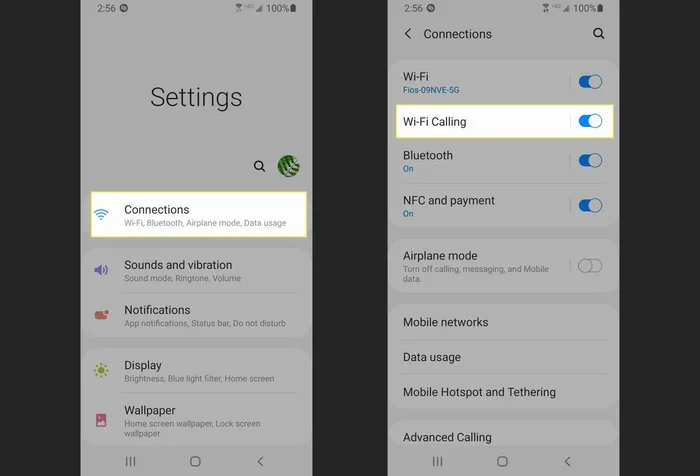
- Step 1: Open the Settings app on your Android phone. You can find it in your app drawer or by swiping down and tapping the gear icon.
- Step 2: Scroll down and tap on Network and Internet. On some phones, this may be called Connections or Mobile Network.
- Step 3: Tap on Wi-Fi Calling or look for a section called Calls. On Samsung phones, it is usually under the Connections tab.
- Step 4: Toggle the Wi-Fi Calling switch to On. Your phone may ask you to confirm and set a preferred network type.
- Step 5: Follow any on-screen prompts to register your address for emergency calls. This is required by law in many countries.
Once you complete these steps, your Wi-Fi calling feature is active. You should see a small Wi-Fi icon or a “Wi-Fi Calling” label in your status bar when you are connected. This confirms that your phone is ready to use voice over Wi-Fi.
Where to Find the Setting on Popular Brands
Different phone brands organize their settings in slightly different ways. Here is a quick guide:
- Samsung: Settings > Connections > Wi-Fi Calling
- Google Pixel: Settings > Network and Internet > Wi-Fi Calling
- OnePlus: Settings > Wi-Fi Calling
- Xiaomi: Settings > SIM Cards & Mobile Network > Wi-Fi Calling
If you cannot find the option, try searching for “Wi-Fi Calling” directly in your Settings search bar. Most Android phones released in the last few years support this feature natively.
How to Set Wi-Fi Calling as Your Preferred Calling Method
Now that you have Wi-Fi calling enabled, the next step is to make it your preferred way to place and receive calls. This ensures your Android phone always tries to use Wi-Fi first before falling back to the mobile network. Let us look at how to do this.
Setting Wi-Fi Calling as Preferred on Your Device
To set Wi-Fi calling as your preferred calling method, follow these steps:
- Go to Settings > Network and Internet > Wi-Fi Calling.
- Look for an option called “Wi-Fi Calling Preference” or “Calling Preference.”
- Select Wi-Fi Preferred or Wi-Fi Only depending on your needs.
- If you choose Wi-Fi Preferred, your phone will use Wi-Fi calling whenever a Wi-Fi network is available.
- If you choose Wi-Fi Only, your phone will only make calls over Wi-Fi and never use the cellular network for voice calls.
The Wi-Fi Preferred option is usually the best choice for most people. It gives you the benefits of voice over Wi-Fi when available but still falls back to the mobile network when you are away from Wi-Fi access. This keeps you connected at all times.
Understanding Wi-Fi Calling vs. Regular Cellular Calls
It helps to understand the difference between Wi-Fi calling and regular cellular calls. Here is a simple comparison:
- Wi-Fi Calling: Uses your wireless network to route calls. Works best when you have a strong data connection but weak cellular signal.
- Regular Cellular Calls: Uses mobile network towers to connect your call. Works best when you have good cellular coverage but no Wi-Fi access.
When you set Wi-Fi calling as your preference, your phone intelligently chooses the best option. It will prioritize Wi-Fi when available but switch to the mobile network seamlessly when needed. You do not need to do anything manually.
Benefits of Preferring Wi-Fi Calling on Android
Setting Wi-Fi calling as your preferred method on your Android phone comes with several real-world advantages. Let us explore why so many people are making the switch.
Better Coverage in Weak Signal Areas
The biggest benefit of Wi-Fi calling is coverage. If you live in a rural area or work in a building with thick walls, your cellular signal might be weak or nonexistent. But if you have Wi-Fi, you can still make calls. This is especially helpful during emergencies when you need to reach someone but cannot get a mobile network signal.
Clearer Audio During Calls
Wi-Fi calling uses a higher quality audio codec than traditional cellular calls. This means your voice sounds sharper and more natural on the other end. You will also hear the other person more clearly. The difference is especially noticeable in noisy environments where regular mobile network calls tend to get muddy.
No Extra Charges for Most Users
Many people worry that Wi-Fi calling will cost extra. The good news is that most carriers include it at no additional charge. Your calls still count toward your monthly minute plan. And if you are calling internationally, Wi-Fi calling often costs the same as a domestic call. Check with your carrier settings to confirm your plan details.
Seamless Handoff Between Wi-Fi and Cellular
One of the best features of modern Android phones is seamless handoff. When you start a call on Wi-Fi and walk out of your Wi-Fi coverage area, your phone automatically switches to the mobile network. The call continues without dropping. This smooth transition is one of the main reasons to prefer Wi-Fi calling as your default method.
Common Wi-Fi Calling Problems and How to Fix Them
While Wi-Fi calling is a great feature, it does not always work perfectly the first time. Here are some common issues and how to fix them.
Wi-Fi Calling Toggle Is Grayed Out
If you cannot turn on Wi-Fi calling because the option is grayed out, try these fixes:
- Make sure your Android phone software is up to date. Go to Settings > System > Software Update.
- Check that your carrier supports Wi-Fi calling on your plan. Some older plans may not include this feature.
- Restart your phone and try again. A simple reboot often resolves temporary software glitches.
- Make sure your SIM card is properly inserted and active.
Calls Drop When Switching from Wi-Fi to Cellular
If your calls drop when you leave a Wi-Fi network, try these steps:
- Make sure your Wi-Fi preference is set to Wi-Fi Preferred, not Wi-Fi Only.
- Check that your mobile network signal is strong enough in the area you are moving to.
- Update your phone’s firmware to the latest version.
- Contact your mobile network provider to check if there are any outages in your area.
Wi-Fi Calling Not Working on International Roaming
If Wi-Fi calling does not work when you are abroad, try the following:
- Make sure your carrier supports international Wi-Fi calling. Not all providers offer this feature in every country.
- Check that your data roaming settings are enabled. Go to Settings > Network and Internet > Mobile Network > Roaming.
- Connect to a stable Wi-Fi network and try again.
- Some countries have restrictions on Wi-Fi calling. Contact your carrier for details.
Expert Tips to Get the Most Out of Wi-Fi Calling
Want to squeeze every bit of performance from your Wi-Fi calling setup? Here are some expert tips that make a real difference.
Use a Strong and Stable Wi-Fi Network
The quality of your Wi-Fi calling depends heavily on your wireless network. Make sure you are connected to a reliable router with a strong signal. If your Wi-Fi signal is weak, your calls may still drop or sound choppy. Consider using a mesh Wi-Fi system if your home has dead spots.
Keep Your Phone Updated
Software updates often include improvements to Wi-Fi calling performance. Make it a habit to check for updates regularly. Go to Settings > System > Software Update and install any available patches. These updates fix bugs and improve how your Android phone handles voice over Wi-Fi.
Turn on Wi-Fi Calling During Bad Weather
Storms and heavy rain can weaken cellular towers and disrupt your mobile network. During bad weather, make sure your Wi-Fi calling is turned on. This ensures you can still make and receive calls even when the cellular signal goes down. It is a simple precaution that can keep you connected when it matters most.
Check Your Data Speed
Wi-Fi calling does not require a lot of data, but it does need a stable connection. If your Wi-Fi speed is very slow, your call quality may suffer. Run a quick speed test on your network before an important call. A speed of at least 1 Mbps is usually enough for clear voice over Wi-Fi.
Use Wi-Fi Calling for Group Calls
If you are on a group call or a conference call, Wi-Fi calling can provide a more stable connection. Traditional cellular calls can struggle with multiple participants, but Wi-Fi handles the load much better. This is especially useful for remote workers and people who take a lot of business calls.
Set Up Wi-Fi Calling on Multiple Devices
Many Android phones allow you to use Wi-Fi calling across multiple devices. For example, you can make and receive calls on your tablet or smartwatch using the same Wi-Fi calling profile. Check your phone’s settings to see if this feature is available. It is a great way to stay connected even if you leave your phone in another room.
Is Wi-Fi Calling Safe and Reliable?
Many people wonder about the safety of Wi-Fi calling. The short answer is yes. Your calls are encrypted just like regular cellular calls. Your mobile network provider uses strong encryption protocols to protect your voice data as it travels over the internet. This means your conversations stay private and secure.
Wi-Fi calling is also very reliable. It has been around for many years and is supported by all major carriers. The technology continues to improve with each new Android phone update. As long as you have a decent Wi-Fi connection, you can count on Wi-Fi calling to deliver clear and stable calls.
Emergency Calls and Wi-Fi Calling
One important thing to know is that Wi-Fi calling supports emergency calls. When you dial 911, your Android phone will use your registered address to send your location to emergency services. This works even if you are far from a cellular tower. However, always make sure your address is up to date in your Wi-Fi calling settings so emergency responders can find you quickly.
Frequently Asked Questions
Does Wi-Fi Calling Use My Data Plan?
Wi-Fi calling uses very little data. A typical one-hour call uses about 1 MB of data. This is so small that it will not affect your data connection or data limit in any meaningful way. You can make long calls without worrying about eating into your monthly data allowance.
Can I Make Wi-Fi Calls to Any Phone Number?
Yes, you can use Wi-Fi calling to call any phone number, including landlines and international numbers. As long as your carrier supports the feature, you can call anyone just like you would with a regular cellular call. The person on the other end does not need Wi-Fi calling or any special app.
Will My Phone Switch Automatically to Wi-Fi Calling?
If you set your Wi-Fi calling preference to Wi-Fi Preferred, your Android phone will automatically switch to Wi-Fi calling when a Wi-Fi network is available. When you leave the Wi-Fi coverage area, it will seamlessly switch back to the mobile network. You do not need to do anything manually.
Do I Need a Special App for Wi-Fi Calling?
No, you do not need a special app. Wi-Fi calling is built into most modern Android phones natively. You just need to turn it on in your settings. Some carriers also offer their own Wi-Fi calling apps, but the built-in feature works just as well for most users.
Is Wi-Fi Calling Free?
Wi-Fi calling is free for most users. It does not cost extra to turn on or use. Your calls still count toward your regular minute plan. If you are calling internationally, Wi-Fi calling may save you money by avoiding roaming fees. Check with your carrier to confirm the details of your specific plan.
What Happens if My Wi-Fi Disconnects During a Call?
If your Wi-Fi connection drops during a call, your Android phone will automatically switch to the mobile network if the signal is strong enough. This is called seamless handoff. In most cases, you will not even notice the switch. The call continues without interruption. If the mobile network signal is also weak, the call may drop, but this is rare with a good cellular signal.
Final Thoughts
Wi-Fi calling is one of the most useful features on any modern Android phone. It gives you better coverage, clearer audio, and saves money on international calls. By following the steps in this guide, you can easily prefer Wi-Fi calling as your default calling method. The setup takes just a few minutes, and the benefits last a lifetime.
Do not let weak cellular signal stop you from staying connected. Turn on Wi-Fi calling today and enjoy the difference. Whether you are at home, at work, or traveling abroad, your Android phone will keep you in touch with the people who matter most. Take a few minutes right now to check your Wi-Fi calling settings and set your preference. You will be glad you did.