How Do I Find My Ssid Name And Password On Any Device
Finding your SSID name and password is easier than you think, no matter what device you use. This guide shows you how to locate your WiFi network name and password on Windows, Mac, phones, and routers. You will learn quick methods to check your router label, access your admin panel, and recover your wireless password on any connected device.
Have you ever stood in front of your router, staring at a confusing sticker, trying to figure out what your SSID name and password actually are? You are not alone. Millions of people struggle to find their WiFi network name and password every single day.
Whether you are setting up a new device, moving to a new home, or simply forgot your network credentials, this guide has you covered. We will walk you through every method step by step. By the end, you will know exactly how to find your SSID name and password on any device without any tech skills.
Let us break it down in a way that makes total sense. No jargon. No confusing steps. Just clear, practical instructions that work right now.
Key Takeaways
- Router label method: Your SSID and default password are printed on a sticker on your router.
- Windows settings: You can find your WiFi password through Network Settings or Command Prompt in seconds.
- Mac users: Keychain Access lets you view your saved WiFi password with just a few clicks.
- Phone and tablet: Both Android and iPhone let you share or view your SSID and network password easily.
- Router admin panel: Logging into your router settings gives you full control over your network name and password.
- ISP support: Your internet provider can help if you cannot find your credentials through other methods.
- Security tip: Always change your default SSID and password to keep your wireless network safe.
📑 Table of Contents
- What Is an SSID and Why Does It Matter?
- How to Find Your SSID Name and Password on Your Router
- Find Your SSID Name and Password on Windows
- Find Your SSID Name and Password on Mac
- Find Your SSID Name and Password on Phones and Tablets
- Log Into Your Router Admin Panel
- Find Your SSID and Password Through Your Internet Provider
- Common Mistakes People Make When Finding Their SSID and Password
- How to Change Your SSID Name and Password
- Quick Comparison: Methods to Find Your SSID and Password
- Final Thoughts
What Is an SSID and Why Does It Matter?
Before we dive into the how, let us quickly cover the what. Your SSID stands for Service Set Identifier. In plain English, it is the name of your wireless network. When you look at your phone or laptop and see a list of available WiFi networks, every name you see is an SSID.
Your SSID works together with your network password to keep your internet connection secure. Without the correct SSID, your device cannot even find the network. Without the password, it cannot connect. Together, these two pieces of information are your network credentials.
Most routers come with a default SSID set by the manufacturer. This often includes the brand name followed by a string of numbers. For example, you might see something like “Netgear5432” or “TP-Link_A8F2.” The default password is usually printed right on the router itself.
Understanding these basics makes everything that follows much simpler. You are not just learning a technical process. You are learning how to take control of your own wireless network.
How to Find Your SSID Name and Password on Your Router
Check the Router Label Sticker
The fastest way to find your SSID and password is right on your router. Look at the bottom or back of the device. There should be a white sticker with printed information. This is the router label, and it contains everything you need.
You will typically see two pieces of information clearly listed:
- SSID or Network Name: This is the name of your wireless network.
- Password or Network Key: This is the default wireless password.
Keep in mind that this shows the default password. If someone has changed it before, this will not work. In that case, you can still use the SSID listed here to find the network. You will just need another method to recover the password.
Check the Router Manual or Packaging
If you have tossed the sticker or it is worn out, do not panic. Your router manual or the original box often has the same information printed on it. Look for a quick start guide card. It usually lists the default SSID and password in a simple table format.
This is a great backup option. Many people do not realize this information is stored right in the box they came in.
When the Default Password Has Been Changed
If someone changed the WiFi password at some point, the router label will no longer help. You have a few options here. You can log into the router admin panel (we will cover this below). You can also check any device that is already connected to the network. Most devices save WiFi passwords for networks you have joined before.
This is where things get really useful. You do not always need the router in front of you to recover your network credentials.
Find Your SSID Name and Password on Windows
Windows makes it pretty easy to find your WiFi password if you are already connected to the network. There are two main methods. Both work well, and you can pick whichever feels more comfortable.
Method 1: Through Windows Settings
Here is how to look up your wireless password using the Settings app:
- Click the Start menu and open Settings.
- Go to Network and Internet.
- Click on WiFi in the left sidebar.
- Find your connected network and click on it.
- Look for the option that says “View network security key” or “View password.”
- You may need to check a box that says “Show characters” to reveal the password.
That is it. Your WiFi password will appear on screen. You can write it down or copy it to use on another device.
Method 2: Using Command Prompt
If you like a more technical approach, the Command Prompt method works great. Here is what to do:
- Type “cmd” in the Windows search bar.
- Open Command Prompt from the results.
- Type the following command and press Enter:
netsh wlan show profile - Find the name of your WiFi network from the list.
- Type this command, replacing “YourNetworkName” with your actual SSID:
netsh wlan show profile name="YourNetworkName" key=clear - Look for the “Key Content” line under Security settings.
The Key Content field shows your WiFi password in plain text. This method works even if you are not currently connected to the network, as long as your device has connected to it before.
Quick Tip: The Command Prompt method is especially handy when you need to find the password for a network you were connected to in the past but are not connected to right now.
Find Your SSID Name and Password on Mac
Mac users also have straightforward options for finding their wireless network details. The process is slightly different from Windows but just as simple.
Using System Preferences
Here is how to check your WiFi password on a Mac:
- Click the Apple menu in the top left corner.
- Open System Preferences (or System Settings on newer macOS versions).
- Click on Network.
- Select WiFi from the left panel.
- Click on Advanced or your current network details.
- Your SSID will be displayed clearly.
However, this method does not always show the password directly. For that, you need the Keychain Access method.
Using Keychain Access
Keychain Access is a built-in Mac tool that stores all your saved passwords securely. Here is how to use it:
- Open Spotlight Search by pressing Command and Spacebar together.
- Type “Keychain Access” and press Enter.
- In the search bar, type the name of your WiFi network.
- Double-click on the network name from the results.
- Check the box that says “Show password.”
- Enter your Mac admin username and password when prompted.
- The WiFi password will now be visible.
This is one of the most reliable ways to recover your wireless password on a Mac. It works for any network your Mac has ever connected to.
Find Your SSID Name and Password on Phones and Tablets
Smartphones and tablets are probably the devices you use to connect to WiFi the most. Good news is, both Android and iPhone make it easy to find your SSID and share your password.
On iPhone and iPad
If your iPhone is connected to the WiFi network you need the password for, you can share it directly with another Apple device:
- Make sure both devices have Wi-Fi and Bluetooth turned on.
- On the device that needs the password, go to WiFi settings.
- Tap on the network name you want to connect to.
- A prompt will appear on the iPhone already connected to that network.
- Tap Share Password on your iPhone.
- The other device will connect automatically.
Unfortunately, iPhones do not let you view the password in plain text unless your device is jailbroken or you use a computer with Keychain Access. But the sharing feature works seamlessly between Apple devices.
On Android Devices
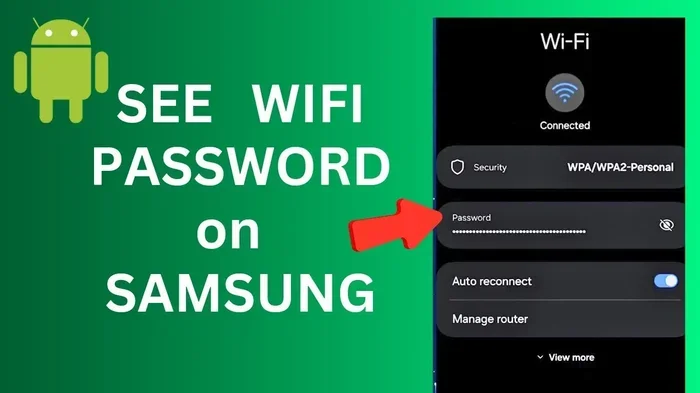
Android gives you a bit more flexibility. Depending on your version and manufacturer, here is the general process:
- Go to Settings on your Android phone.
- Tap on Network and Internet or Connections.
- Select WiFi.
- Find your connected network and tap on it or the gear icon next to it.
- Look for an option that says Share or View Password.
- You may need to authenticate with your fingerprint or PIN.
- A QR code or plain text password will appear on screen.
Many Android phones now show the password in plain text or generate a QR code that another device can scan. This makes sharing your network credentials incredibly fast.
Quick Tip: If you need to find the SSID name on your phone, just look at the WiFi settings screen. The network you are currently connected to is your SSID. It is right there at the top of the list.
Log Into Your Router Admin Panel
If the methods above do not work, logging into your router admin panel is the most powerful option. This gives you access to all your network settings, including your SSID and password.
Step-by-Step Guide
Here is how to access your router settings:
- Connect your device to the router using WiFi or an Ethernet cable.
- Open a web browser on your device.
- Type your router IP address into the address bar. Common addresses are 192.168.1.1 or 192.168.0.1.
- Press Enter. A login page will appear.
- Enter your router username and password. These are often “admin” and “admin” or “admin” and “password.”
- Once logged in, look for Wireless Settings or WiFi Settings.
- Your SSID and password will be displayed there.
The exact steps vary depending on your router brand. Brands like Netgear, TP-Link, ASUS, and Linksys all have slightly different admin panel layouts. But the general process stays the same.
If you have never changed your router login credentials, the default username and password are usually printed on the router label alongside your SSID and WiFi password.
What If You Forgot Your Router Login Password?
This is a common situation. If you changed the router admin password and forgot it, you can reset your router to factory settings. Look for a small reset button on the back of the router. Press and hold it for about 10 to 15 seconds with a paperclip.
Keep in mind that a factory reset erases all custom settings. Your SSID and password will go back to the defaults printed on the router label. You will need to set up your network again from scratch.
Find Your SSID and Password Through Your Internet Provider
Your Internet Service Provider, or ISP, can also help you find your network credentials. Many ISPs like Comcast, AT&T, Spectrum, and Verizon provide this information in their online account portals.
Here is what you can do:
- Log into your ISP account on their website or app.
- Navigate to your internet or WiFi settings section.
- Look for your network name and password details.
- Some ISPs also have a support phone line you can call for help.
If you recently had a technician install your internet service, they may have also given you a setup card with your SSID and password written on it. Check any paperwork or emails from your ISP for this information.
Common Mistakes People Make When Finding Their SSID and Password
There are a few common mistakes that trip people up when trying to find their WiFi network name and password. Knowing these can save you a lot of frustration.
Confusing the SSID with the Password
The SSID is the network name. The password is what you type in to connect. These are two different things, and mixing them up is one of the most common mistakes people make.
Looking at the Wrong Router
If you have more than one router or access point in your home, make sure you are checking the correct one. The SSID on the label matches the router it is on. If you have a mesh WiFi system, each node may show the same network name.
Not Checking for Capital Letters and Special Characters
WiFi passwords are case-sensitive. A capital “W” and a lowercase “w” are not the same. Make sure you type your password exactly as it appears on the router label or in your settings.
Assuming the Default Password Is Still Active
If someone changed your WiFi password at any point, the default password on the router label will not work. Always try logging into the router admin panel if the default password fails.
How to Change Your SSID Name and Password
Once you have found your SSID and password, you might want to change them for better security. This is actually a great practice, especially if you are still using the default credentials.
To change your WiFi network name and password, log into your router admin panel following the steps we covered above. Then go to the Wireless Settings section. You will see fields where you can enter a new network name and a new password.
Choose a network name that is easy for you to recognize but does not reveal personal information. For the password, use a strong combination of letters, numbers, and special characters. This keeps your wireless network secure from unauthorized access.
Expert Insight: Security experts recommend changing your WiFi password every few months and using WPA3 encryption if your router supports it. This is the strongest WiFi security protocol available today.
Quick Comparison: Methods to Find Your SSID and Password
| Method | Device | Difficulty | Works When Not Connected |
|---|---|---|---|
| Router Label Sticker | Any | Very Easy | Yes |
| Windows Settings | Windows PC | Easy | No |
| Command Prompt | Windows PC | Medium | Yes |
| Keychain Access | Mac | Easy | Yes |
| iPhone WiFi Sharing | iPhone | Easy | No |
| Android WiFi Settings | Android | Easy | No |
| Router Admin Panel | Any | Medium | Yes |
| ISP Account Portal | Any | Easy | Yes |
As you can see, each method has its strengths. The router label is the fastest option when you have physical access to the router. Command Prompt and Keychain Access are great for recovering passwords for networks you were connected to before. And the router admin panel gives you the most control over everything.
No matter which method you choose, you now have multiple ways to find your SSID name and password on any device. Pick the one that works best for your situation and get back online fast.
Final Thoughts
Finding your SSID name and password does not have to be a stressful experience. With the right knowledge, it is a quick and simple process. Whether you check the router label, use your computer settings, or log into the admin panel, you have plenty of options at your fingertips.
The key is knowing which method works for your specific situation. If you have the router in front of you, the label sticker is your best friend. If you are already connected to the network, your device settings can reveal the password in seconds. And if nothing else works, the router admin panel or your ISP can always help.
Remember to update your default SSID and password regularly. It keeps your home WiFi network safe and secure. Share this guide with friends and family who might be struggling with the same problem. Everyone deserves to know how easy it is to find their WiFi network name and password.
Now go ahead and find your SSID name and password with confidence. You have got this.
Frequently Asked Questions
Where is the default SSID name and password for my router?
The default SSID name and password are printed on a sticker on your router, usually on the bottom or back. You can also find this information in your router manual or on the original packaging box.
Can I find my WiFi password on my phone without connecting to the network?
Generally, no. Most phones only show the WiFi password for networks you are currently connected to. However, on Android, some phones allow you to view a shared QR code or password for saved networks. On iPhone, you can share the password with another Apple device if you are connected.
What should I do if my router label sticker is missing or worn out?
If the sticker is gone, try logging into your router admin panel using the default IP address like 192.168.1.1. You can also check your ISP account portal online or call your internet provider for help recovering your network credentials.
How do I find my SSID if I am not connected to any WiFi?
You can find your SSID by looking at the router label directly. Alternatively, if your device has previously connected to the network, you can check saved network lists in your WiFi settings or use Command Prompt on Windows to view all known network profiles.
Is it safe to change my SSID name and password?
Yes, it is not only safe but recommended. Changing your default SSID and password improves your network security. Just make sure to write down your new credentials somewhere safe so you do not forget them.
What is the difference between an SSID and a WiFi password?
Your SSID is the name of your wireless network that you see when browsing available connections. Your WiFi password is the secret key you type in to gain access to that network. Together, they allow your devices to find and connect to your wireless network securely.