How Can I See My Android Phone On My Mac Right Now
You can see your Android phone on your Mac using several simple methods, from USB cables to wireless screen mirroring apps. Android Mac connection is easier than most people think, and you do not need expensive hardware to get it done. Whether you want to mirror your Android screen to Mac, transfer files, or manage notifications, this guide covers every practical option you can try today.
Have you ever sat at your Mac and wished you could just see what is happening on your Android phone? Maybe you need to check a text message, transfer a photo, or mirror your screen for a presentation. Seeing your Android phone on your Mac is not only possible, it is also surprisingly simple. In this guide, we walk you through every method that actually works in 2024 and beyond.
You do not need to be a tech expert. Whether you use a Samsung, Google Pixel, or any other Android device, the steps below apply to almost every phone. We will cover wired connections, wireless options, and even dedicated apps that turn your Mac into a powerful Android companion. Let us get started.
Key Takeaways
- USB Connection Method: The fastest and most reliable way to view your Android phone on your Mac using a simple cable.
- Wireless Screen Mirroring: Apps like AirDroid and Scrcpy let you cast your Android screen to Mac without any wires.
- File Transfer Made Easy: Use Android File Transfer or cloud services to move files between devices instantly.
- Samsung DeX: Samsung users get a desktop-like experience when connecting their phone to a Mac.
- No Jailbreaking Required: All methods work with standard Android and macOS setups.
- Free and Paid Options: Multiple tools are available at zero cost, with premium upgrades for extra features.
📑 Table of Contents
- Why Would You Want to See Your Android Phone on a Mac?
- Method 1: Connect via USB Cable (The Fastest Way)
- Method 2: Use Android File Transfer App
- Method 3: Wireless Screen Mirroring With Apps
- Method 4: Samsung DeX for Samsung Phone Users
- Method 5: Use Cloud Services for File Syncing
- Comparison Table: Which Method Is Right for You?
- Common Mistakes to Avoid
- Quick Tips for the Best Experience
- Can You See Android Notifications on Your Mac?
- Is It Safe to Connect Your Android Phone to a Mac?
- Conclusion
Why Would You Want to See Your Android Phone on a Mac?
There are many real reasons people want to connect their Android phone to a Mac. Some need to move files quickly without using email or cloud storage. Others want a bigger screen for reading messages or watching videos. Here are the most common reasons:
- File transfers: Moving photos, videos, and documents between your phone and computer.
- Screen mirroring: Displaying your Android screen on a larger monitor for presentations or gaming.
- Message management: Reading and replying to texts directly from your Mac.
- Notifications: Seeing Android alerts on your Mac so you do not miss anything.
- Backup and sync: Keeping your data safe and organized across devices.
- App testing: Developers who need to test apps on a real device connected to their Mac.
No matter your reason, the methods below will help you get it done quickly and easily.
Method 1: Connect via USB Cable (The Fastest Way)
The USB cable method is the most straightforward way to view your Android phone on your Mac. It requires no extra software in most cases, and the connection is rock solid. Here is exactly how to do it.
Step-by-Step USB Connection Guide
- Grab your Android phone and the original USB cable that came with it.
- Plug one end into your Android phone and the other end into your Mac.
- On your Android phone, swipe down from the top of the screen to open the notification panel.
- Look for a USB notification and tap it.
- Select File Transfer or MTP (Media Transfer Protocol) from the options.
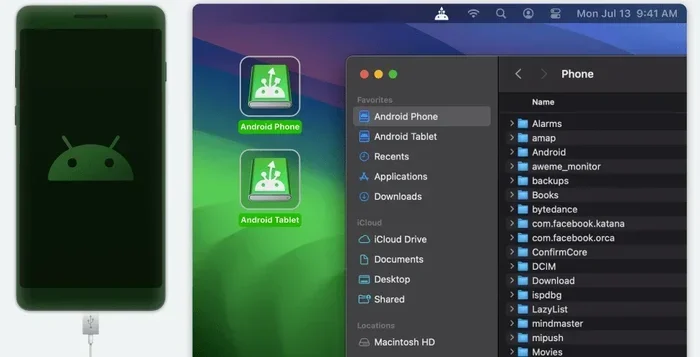
- On your Mac, a window should appear showing your Android phone as a connected device.
Once connected, you can browse your phone’s files, copy photos, and transfer documents just like you would with a USB drive. This method works with virtually every Android phone and every Mac running macOS.
What If Your Mac Does Not Detect the Phone?
Sometimes the Mac does not recognize the phone right away. Do not panic. Try these quick fixes:
- Unlock your Android phone and tap OK on the USB debugging prompt if it appears.
- Try a different USB port on your Mac.
- Use the original USB cable instead of a third-party one.
- Restart both your phone and your Mac, then try again.
- Make sure your Mac has the latest version of macOS installed.
Quick Tip: Always use the original USB cable that came with your phone. Third-party cables sometimes cause connection issues and slow down file transfers.
Method 2: Use Android File Transfer App
While macOS can sometimes detect your Android phone through USB, it does not always make file management easy. That is where Android File Transfer comes in. This free app from Google makes browsing and moving files between your Android phone and Mac a breeze.
How to Install and Use Android File Transfer
First, download Android File Transfer from the official Google website. Open the downloaded file and drag the app into your Applications folder. Next, connect your Android phone to your Mac using a USB cable. Make sure you select File Transfer mode on your phone. Then open Android File Transfer on your Mac. Your phone’s file system will appear in a new window, and you can drag and drop files freely.
This app is perfect for people who transfer files regularly between their Android phone and Mac. It supports all file types, including photos, videos, music, and documents. Best of all, it is completely free.
Method 3: Wireless Screen Mirroring With Apps
If you do not want to deal with cables at all, wireless screen mirroring is the way to go. Several apps let you cast your Android screen to your Mac over Wi-Fi. This is ideal for presentations, streaming content, or simply seeing your phone screen on a bigger display.
AirDroid: The All-in-One Solution
AirDroid is one of the most popular apps for Android Mac integration. It lets you mirror your screen, transfer files, and even manage notifications from your Mac. To get started, download AirDroid on both your Android phone and your Mac. Make sure both devices are on the same Wi-Fi network. Open the app on your phone and note the IP address shown. Type that address into your Mac’s web browser, and you will see your phone’s screen right there.
AirDroid is free for basic use. The premium version adds extra features like higher resolution mirroring and larger file transfer limits.
Scrcpy: The Free and Open Source Option
Scrcpy is a powerful, free tool that mirrors your Android screen to your Mac with minimal lag. It works over USB or Wi-Fi and supports high-quality display output. You will need to install Android Debug Bridge (ADB) on your Mac first, which is a developer tool that lets your computer communicate with your phone. Once set up, Scrcpy runs from the command line and displays your phone screen in a neat window on your Mac.
Scrcpy is perfect for tech-savvy users who want a lightweight, no-nonsense mirroring solution. It supports screen recording, clipboard sharing, and even controlling your phone from your Mac.
Vysor: Easy Setup for Beginners
Vysor is another great option that is very beginner-friendly. It works as a Chrome extension and a desktop app. Connect your phone via USB or use the wireless version, and Vysor displays your Android screen directly on your Mac. The free version works well for basic mirroring, while the paid version removes ads and adds higher resolution support.
Method 4: Samsung DeX for Samsung Phone Users
If you own a Samsung Galaxy phone, you have access to a fantastic feature called Samsung DeX. DeX stands for Desktop Experience, and it transforms your phone into a desktop-like interface when connected to your Mac. You get a taskbar, resizable windows, and full multitasking support.
To use Samsung DeX, you need a Samsung Galaxy S8 or newer, or a Galaxy Note 8 or newer. Connect your phone to your Mac using a USB cable or wirelessly through Wi-Fi. Your Mac will display a desktop interface powered by your phone. You can open apps, browse the web, and even use Microsoft Office directly from your phone’s processing power.
Samsung DeX is one of the best examples of Android Mac integration available today. It turns your phone into a full computer setup without needing a separate device.
Method 5: Use Cloud Services for File Syncing
Cloud services offer a simple wireless way to access your Android files from your Mac. You do not need any special apps or cables. Just upload files from your phone to a cloud service, and access them from your Mac browser or desktop app.
Best Cloud Options for Android to Mac
- Google Drive: Built into every Android phone. Upload files and access them from any browser on your Mac.
- Dropbox: Install Dropbox on both devices for automatic syncing of photos and documents.
- OneDrive: Microsoft’s cloud service works well with Android and offers generous free storage.
- Google Photos: Automatically backs up your photos and lets you view them on your Mac through any browser.
Cloud syncing is not real-time screen mirroring, but it is excellent for keeping your files accessible across devices. It is also one of the most reliable Android Mac connection methods because it does not depend on cables or Wi-Fi proximity.
Comparison Table: Which Method Is Right for You?
| Method | Wired or Wireless | Cost | Best For | Setup Difficulty |
|---|---|---|---|---|
| USB Cable | Wired | Free | File transfers | Very Easy |
| Android File Transfer | Wired | Free | File management | Easy |
| AirDroid | Wireless | Free / Premium | Screen mirroring, file transfer | Easy |
| Scrcpy | Both | Free | Advanced users, low-lag mirroring | Medium |
| Vysor | Both | Free / Premium | Beginners, casual mirroring | Easy |
| Samsung DeX | Both | Free | Samsung users, desktop experience | Easy |
| Cloud Services | Wireless | Free / Premium | File syncing, photo backup | Very Easy |
Common Mistakes to Avoid
Even though connecting your Android phone to your Mac is straightforward, some common mistakes can cause frustration. Here are the pitfalls to watch out for:
- Using a low-quality USB cable: Cheap cables often fail to transfer data properly. Always use a high-quality or original cable.
- Forgetting to unlock your phone: Your Mac cannot access your phone’s files if the screen is locked. Unlock your phone before connecting.
- Not selecting File Transfer mode: When you plug in your phone, make sure you choose File Transfer instead of just charging.
- Ignoring software updates: Outdated macOS or Android software can cause compatibility issues. Keep both devices updated.
- Using the wrong Wi-Fi network: For wireless mirroring, both devices must be on the same network. Check this first if connection fails.
- Skipping USB debugging: Some advanced methods like Scrcpy require USB debugging to be enabled in your phone’s developer settings.
Expert Insight: Most connection problems come down to three things: cable quality, phone unlock status, and correct USB mode. Check these first before troubleshooting anything else. This simple approach saves hours of frustration.
Quick Tips for the Best Experience
Want to get the most out of your Android phone on Mac setup? Here are some quick tips that make a big difference:
- Keep both devices charged before starting a long mirroring session.
- Use a high-speed USB 3.0 port on your Mac for faster file transfers.
- Close unnecessary apps on your phone before mirroring to reduce lag.
- Enable USB debugging in Developer Options for advanced connection methods.
- Bookmark the AirDroid web interface on your Mac browser for quick access.
- Use a Wi-Fi range extender if your wireless mirroring experiences lag or disconnection.
Can You See Android Notifications on Your Mac?
Yes, you can. Apps like AirDroid and Pushbullet let you receive and reply to Android notifications directly on your Mac. This means you can see incoming texts, WhatsApp messages, and app alerts without ever touching your phone. It is a game-changer for productivity and convenience.
To set this up, install the app on your phone and your Mac, sign in with the same account, and enable notification access. You will start seeing alerts on your Mac within minutes. Some apps even let you reply to messages from your Mac keyboard, which is incredibly handy.
Is It Safe to Connect Your Android Phone to a Mac?
Safety is a valid concern when connecting two different devices. The good news is that all the methods described above are safe when used correctly. Stick to official apps like Android File Transfer, AirDroid, and Scrcpy. Avoid downloading software from unknown sources. Keep your operating systems updated to patch any security vulnerabilities. When in doubt, use a trusted VPN on public Wi-Fi networks for extra protection.
Conclusion
Seeing your Android phone on your Mac is easier than you might think, and there are multiple methods to choose from. Whether you prefer the simplicity of a USB cable, the convenience of wireless mirroring with AirDroid or Scrcpy, or the full desktop experience of Samsung DeX, there is a solution that fits your needs. Each method has its strengths, so pick the one that matches what you want to accomplish.
Start with the USB cable method if you just need to transfer files. Try AirDroid or Vysor if you want screen mirroring without wires. Samsung users should absolutely explore DeX for the best desktop experience. And do not forget cloud services for seamless file syncing across devices.
The key is to try the method that feels most natural to you. Once you see your Android phone on your Mac, you will wonder how you ever managed without it. Pick one method from this guide, follow the steps, and you will be connected in minutes.
Frequently Asked Questions
Can I see my Android phone screen on my Mac without installing any apps?
Yes, you can use the USB cable method to view your phone’s files on your Mac without installing anything extra. macOS can detect your Android phone as a storage device when connected via USB. However, for full screen mirroring, you will need to install an app like AirDroid or Scrcpy.
Is it free to mirror my Android phone to my Mac?
Many tools like Scrcpy, Android File Transfer, and AirDroid (basic version) are completely free. Some apps like Vysor and AirDroid offer premium features for a fee, but the free versions work great for most users. You do not need to pay to get started.
Why does my Mac not recognize my Android phone when I plug it in?
This usually happens because your phone is set to charging mode instead of file transfer mode. Unlock your phone and select File Transfer or MTP from the USB notification. Also try a different USB port or cable if the problem persists.
Can I control my Android phone from my Mac?
Yes, apps like AirDroid and Scrcpy let you control your Android phone from your Mac. You can open apps, type messages, and even take screenshots directly from your computer. This is incredibly useful for presentations and remote device management.
Does screen mirroring slow down my Android phone?
Screen mirroring uses some processing power, but modern phones handle it well without noticeable slowdown. If you experience lag, try closing background apps or switching from wireless to a USB connection for better performance.
What is the best method for beginners?
The USB cable method is the best starting point for beginners. It requires no apps, no Wi-Fi setup, and works instantly. Once you are comfortable, you can explore wireless mirroring apps like AirDroid for more convenience.
=== CONCLUSION ===
How can I see my Android phone on my Mac right now? The answer is simpler than you think. From USB cables to wireless mirroring apps, you have multiple reliable options at your fingertips. Android Mac connection opens up a world of convenience, letting you transfer files, mirror your screen, and manage notifications all from one place. Pick the method that works best for you, follow the steps in this guide, and you will be connected in no time. Start today and experience the seamless integration between your Android phone and your Mac.