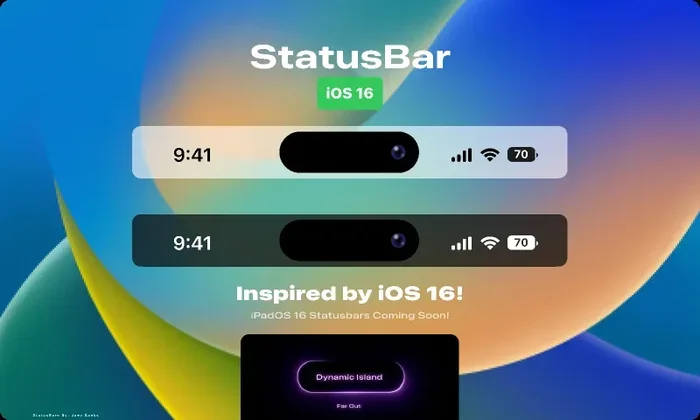
Explaining The Symbols At The Top Of Your Ipad Screen
Understanding the symbols at the top of your iPad screen helps you stay connected and informed at a glance. The status bar includes icons for Wi-Fi, Bluetooth, battery life, cellular signal, and privacy indicators. This guide breaks down every symbol so you can use your iPad with confidence and ease.
Have you ever looked up at the top of your iPad screen and wondered what all those tiny symbols mean? You are not alone. The symbols at the top of the iPad screen can look like a secret code. But once you learn what they mean, they become incredibly useful.
The status bar sits right at the top edge of your iPad display. It shows you important information without needing to open any app. From battery life to Wi-Fi strength, these small icons work hard to keep you in the know. This guide will walk you through every single symbol you see up there.
Whether you have a brand new iPad or have been using one for years, there is always something new to learn. Apple adds and updates these icons with every software release. So even if you think you know them all, you might find a surprise or two. Let us dive in and decode your iPad status bar together.
Key Takeaways
- Status bar icons give you instant information: At a glance, you can check your Wi-Fi, cellular signal, battery, and more.
- Privacy symbols are easy to spot: Orange and green dots tell you when apps are using your camera or microphone.
- Battery indicators show more than just charge: You can see battery percentage, charging status, and Low Power Mode.
- Wi-Fi and Bluetooth symbols change based on activity: Different shapes and colors indicate connection strength and status.
- You can customize what appears: Some status bar icons can be hidden or rearranged through Settings.
- Orientation and screen lock icons help with daily use: They prevent unwanted screen rotations and distractions.
📑 Table of Contents
- What Are The Symbols At The Top Of Your iPad Screen?
- Understanding The Status Bar Icons On Your iPad
- Wi-Fi, Bluetooth, And Cellular Symbols Explained
- Battery And Charging Indicators On Your iPad
- Privacy And Security Symbols You Should Know
- Customizing What You See At The Top Of Your iPad Screen
- Common Questions About iPad Status Bar Symbols
- Final Thoughts On The Symbols At The Top Of Your iPad Screen
What Are The Symbols At The Top Of Your iPad Screen?
The area at the very top of your iPad is called the status bar. It displays small icons that give you real time information. Think of it as a dashboard that never goes away. Each icon has a specific meaning and purpose.
These iPad status bar icons cover everything from connectivity to battery life. They also show you when something is active in the background. For example, an orange dot means an app is using your microphone right now. A green dot means the camera is active.
The symbols at the top of your iPad screen are grouped into a few categories. You have connectivity icons, battery indicators, and privacy alerts. Understanding these groups makes it much easier to read your iPad at a glance. Let us break them down one by one.
Why The Status Bar Matters
You might not pay much attention to the status bar. But it actually plays a big role in your daily iPad use. It tells you whether you are connected to the internet. It shows if your battery is running low. It even warns you about privacy issues.
Imagine you are on a video call. You can quickly glance at the top of your screen to see if your Wi-Fi is strong. Or you might notice the battery icon and realize you need a charger soon. These small details save you from surprises and frustration.
Understanding The Status Bar Icons On Your iPad
Apple keeps the status bar clean and minimal. But every icon there has a job to do. Let us go through the most common ones you will see every day.
Cellular Signal Icons
If you have a cellular iPad, you will see signal bars at the top left. These bars show how strong your connection is to the mobile network. More bars mean a better connection. Fewer bars mean you might be in a weak signal area.
Next to the signal bars, you might see letters like 5G, LTE, or 4G. These tell you what type of network you are connected to. 5G is the fastest, while 4G or LTE is still very good for most tasks. If you see no signal bars at all, your iPad is not connected to cellular data.
Wi-Fi Symbol
The Wi-Fi icon looks like a fan or a series of curved lines. When you see it, your iPad is connected to a Wi-Fi network. The more lines that are filled in, the stronger your Wi-Fi signal is.
If the Wi-Fi icon has a small slash through it, that means you are connected to a network but there is no internet access. This is a common issue with captive portals or routers that need reconfiguration. You might need to open a browser and sign in again.
Bluetooth Icon
The Bluetooth symbol looks like a stylized letter B made of two triangles. When you see this icon, your iPad is paired with a Bluetooth device nearby. This could be headphones, a keyboard, or a speaker.
The icon does not tell you the connection strength. But if Bluetooth is on and ready to pair, it will appear in your control center as well. A filled Bluetooth icon means an active connection. An empty one means Bluetooth is on but not connected to anything right now.
Location Services Icon
When an app is using your location, you will see a small arrow icon near the top of the screen. A hollow purple arrow means an app has used your location recently. A solid purple arrow means an app is using your location right now.
This icon is part of Apple’s strong privacy features. It helps you stay aware of which apps know where you are. You can manage location permissions in the Settings app under Privacy and Security.
Do Not Disturb And Focus Modes
When Do Not Disturb or a Focus mode is active, you will see a crescent moon icon at the top of your screen. This means notifications are silenced. You will not get alerts for calls or messages unless you allow them from specific contacts.
You can turn this off by going to Control Center and tapping the moon icon. Focus modes also include Work, Personal, and Sleep modes. Each one can be customized to fit your routine.
Screen Rotation And Orientation Lock
A lock icon with a circular arrow around it means your screen rotation is locked. When this is on, your iPad will not rotate when you turn it. This is helpful when reading or watching videos in bed.
Without the lock, your iPad will switch between portrait and landscape mode automatically. Some apps work better in one orientation than the other. The orientation lock gives you control over how your screen displays.
Wi-Fi, Bluetooth, And Cellular Symbols Explained
Connectivity is at the heart of what makes the iPad so useful. The symbols at the top of your iPad screen tell you a lot about how you are connected. Let us take a closer look at each one.
How To Read Your Connection Strength
Connection strength icons use bars or shapes to show you the quality of your signal. For Wi-Fi, more filled bars mean a stronger connection. For cellular, the same bar system applies. For Bluetooth, the icon presence means you are connected.
Weak signals can cause slow downloads, buffering during streaming, and dropped calls. If you notice a weak signal icon, try moving closer to your router or stepping into a different room. Sometimes simply restarting your Wi-Fi router can also help improve your connection.
What The Different Network Labels Mean
You might see 5G, LTE, 4G, or 3G next to your cellular signal bars. These labels tell you the generation of your mobile data connection. Here is a quick breakdown:
- 5G: The fastest available mobile data speed. Great for streaming and large downloads.
- LTE or 4G: Very fast and reliable for most daily tasks.
- 3G: Slower but still usable for basic browsing and messaging.
For Wi-Fi, you might also see the name of the network you are connected to. This appears to the right of the Wi-Fi icon. It helps you confirm you are on the right network, especially if you have multiple Wi-Fi networks at home.
Battery And Charging Indicators On Your iPad
The battery icon is one of the most looked at symbols at the top of your iPad screen. It sits on the right side of the status bar and gives you quick information about your power level.
Battery Icon Shapes And What They Mean
The battery icon changes shape depending on your iPad model and iOS version. On most iPads, you see a battery outline with a fill level inside. The more green you see, the more charge you have left.
When your battery is very low, the icon turns red. This is a clear warning that you need to charge soon. If the battery icon shows a lightning bolt, your iPad is currently charging.
Battery Percentage Option
You can turn on the battery percentage display in Settings. Go to Settings, tap Battery, and toggle on Battery Percentage. This replaces the battery icon with a exact percentage number.
Some users prefer the percentage because it is more precise. Others like the visual battery icon because it gives a quick snapshot. You can switch between them whenever you want. It is all about what works best for your workflow.
Low Power Mode Icon
When Low Power Mode is active, the battery icon turns yellow. This mode reduces background activity to extend your battery life. It is a great feature when you are away from a charger and need your iPad to last longer.
You can turn Low Power Mode on in Settings or through Control Center. Keep in mind that some features may slow down slightly. Email fetch rates decrease, and some visual effects are reduced. But for most users, the trade off is well worth the extra battery life.
Privacy And Security Symbols You Should Know
Apple takes privacy seriously. That is why the iPad includes clear symbols to tell you when apps are accessing sensitive features. These privacy indicators are among the most important symbols at the top of your iPad screen.
The Orange Dot And Microphone Access
An orange dot appears at the top right of your screen when an app is using your microphone. This could be during a voice memo, a phone call, or a video conference. The dot is always visible as long as the microphone is active.
If you see the orange dot and you did not start any recording app, check your open apps. You can swipe down from the top right corner to open Control Center. There, you will see a recent mic access indicator that tells you which app used it.
The Green Dot And Camera Access
A green dot means an app is using your camera right now. This includes both the front and rear cameras. Video calls, photo taking, and augmented reality apps all trigger this symbol.
Just like the orange dot, you can check which app recently used the camera. Open Control Center and look for the camera indicator. This helps you stay aware of which apps have access to your camera at any given time.
Recording And Screen Capture Indicators
When you are recording your screen, a red dot or red status bar appears at the top. This is a clear visual cue that your screen activity is being captured. You can stop the recording by tapping the red icon and confirming.
Screen recording is a powerful feature. But it is also important to know when it is active. The red indicator ensures you are always aware of what is being recorded. This protects your privacy and prevents accidental captures of sensitive information.
Customizing What You See At The Top Of Your iPad Screen
While you cannot remove all status bar icons, you can customize some of what appears. Apple gives you control over certain indicators through the Settings app.
Hiding Status Bar Icons
Some iPad models allow you to hide certain status bar elements. For example, you can hide the battery percentage icon or the Bluetooth icon when they are not in use. This creates a cleaner look on your screen.
To adjust these settings, go to Settings, then look for Display and Brightness or General settings depending on your iPad model. Not all icons can be hidden, but Apple has given users more control over the status bar over time.
Using Control Center For More Details
Control Center is your companion to the status bar. When you swipe down from the top right corner, you get a detailed view of your connections. You can see Wi-Fi network names, Bluetooth devices, airplane mode, and more.
Think of Control Center as a deeper dive into the symbols at the top of your iPad screen. It gives you actionable controls right from one place. You can turn Wi-Fi off, connect to a new Bluetooth device, or enable airplane mode with a single tap.
Adding And Removing Control Center Tiles
You can customize what appears in Control Center. Go to Settings, tap Control Center, and add or remove controls. This lets you build a quick access panel that fits your needs perfectly.
Common additions include the camera shortcut, screen recording, and low power mode toggle. You can also add timers, calculator, and other useful tools. Personalizing Control Center makes your iPad feel more tailored to how you work.
Common Questions About iPad Status Bar Symbols
Many users have questions about the tiny icons at the top of their iPad. Here are some of the most common ones people ask.
Why is there a hollow triangle at the top of my screen? This is the VPN icon. It means you are connected to a Virtual Private Network. Your internet traffic is being routed through a secure server for added privacy and security.
What does the airplane icon mean? The airplane icon means Airplane Mode is on. This disables all wireless connections including Wi-Fi, Bluetooth, and cellular data. You can turn it off by opening Control Center and tapping the airplane icon.
Why do I see a small x next to the Wi-Fi icon? This means your iPad cannot connect to the available Wi-Fi network. It could be a password issue or a router problem. Try forgetting the network and reconnecting to fix this.
What is the play icon that sometimes appears? This shows that media is actively playing in the background. It could be music from Spotify, a podcast, or a video from an app. You can tap it to open the app and control playback.
Why is there a sync icon spinning at the top? The spinning circle means your iPad is syncing data with iCloud or another service. This is normal and usually finishes quickly. If it spins for a long time, you may have a connectivity issue.
What does the tablet or pen icon mean? This appears when your Apple Pencil is connected and charging. It lets you know the Pencil is ready to use and its battery level is being monitored.
Final Thoughts On The Symbols At The Top Of Your iPad Screen
The symbols at the top of your iPad screen are more than just tiny graphics. They are a powerful communication tool from Apple. Each icon tells you something important about your device and its current state.
Once you learn what these icons mean, you will never look at the top of your iPad the same way again. You will glance up and instantly know your connection strength, battery level, and privacy status. It is like having a personal assistant built right into your display.
Take a few minutes today to go through this guide and check your own iPad. Look at the status bar and try to identify each symbol. You will be surprised how much information is available in that small strip at the top. The more you understand your iPad, the more you can get out of it.
Apple designs these icons with clarity and purpose in mind. They want you to stay informed without cluttering your screen. The status bar is a perfect example of that design philosophy. Simple, useful, and always there when you need it.
So next time you pick up your iPad, take a moment to look up. Those small symbols are working hard for you. And now, you know exactly what they are saying.