Does iPhone Store Wi Fi Passwords Here Is The Answer
Does iPhone store Wi Fi passwords? Yes, your Apple device keeps track of them securely. You can easily view saved wireless networks and find your network security key right from your settings. This guide shows you how to access the Wi-Fi password finder on your device and manage your connections like a pro.
Key Takeaways
- Yes, iPhones save them: Your device automatically stores every network you join.
- Easy to view: You can find your stored network passwords in the Passwords app.
- Seamless sharing: The Apple ecosystem lets you share Wi-Fi instantly with friends.
- Secure by default: iCloud keychain encrypts all your wireless router credentials.
- Simple troubleshooting: Resetting network settings is a powerful Wi-Fi password recovery tool.
- Full control: You can manage your Wi-Fi network list and forget old connections anytime.
📑 Table of Contents
- Does iPhone Store Wi Fi Passwords Here Is The Full Guide
- How Does Your iPhone Handle Wi-Fi Passwords?
- How to View Saved Wi-Fi Passwords on Your iPhone
- Sharing Wi-Fi Passwords with Others
- Managing Your Wireless Network List
- Quick Tips for Managing Your iPhone Wi-Fi Passwords
- Common Mistakes People Make with Wi-Fi Passwords
- Troubleshooting Common Wi-Fi Issues
- Is It Safe to Store Passwords on Your iPhone?
- Conclusion
Does iPhone Store Wi Fi Passwords Here Is The Full Guide
How Does Your iPhone Handle Wi-Fi Passwords?
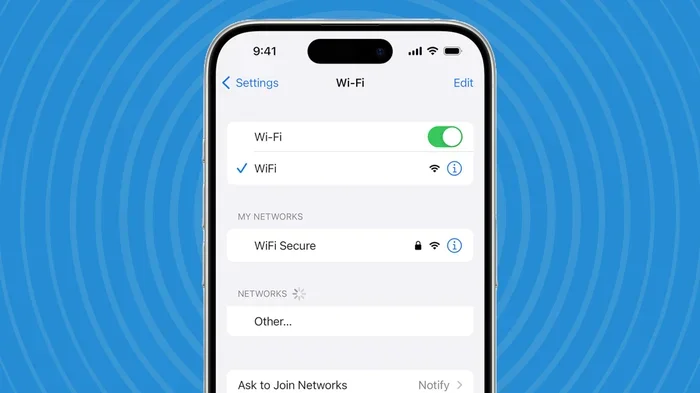
When you connect to a wireless network, your phone does more than just get online. It actually saves the details for future use. This feature makes your daily life much easier. You do not have to type in long strings of letters and numbers every time you walk into your favorite coffee shop. The iOS operating system manages this process behind the scenes. So, does iPhone store Wi Fi passwords? The answer is a definite yes. Your device keeps a record of every network you have ever joined.
Understanding how this works helps you take control of your wireless password management. Apple designed the iOS operating system to remember your stored network passwords securely. When you tap connect, the phone checks its memory. If it recognizes the network, it fills in the required details automatically. This is part of the seamless experience the Apple ecosystem provides. You move from home to work to the park, and your phone handles the connections. It feels like magic, but it is really just smart software design.
The iCloud keychain plays a huge role here. This feature syncs your passwords across all your Apple devices. So, if you save a password on your iPhone, your iPad and Mac get it too. This makes password autofill incredibly convenient. You never have to dig through a notebook to find your wireless router credentials. Everything stays updated and ready for you. The system ensures that your Wi-Fi password finder tools work smoothly across the board.
Your phone also looks for networks automatically. It scans the air for known saved wireless networks. When it finds a match, it prompts you to join. This background scanning saves you time and effort. You do not have to manually search for your favorite spots anymore. The device remembers the network security key for each one. This feature is built right into the core of the iOS operating system. It is a fundamental part of how modern smartphones operate.
Another important aspect is the Wi-Fi network list. Your phone maintains a history of every network you have connected to. This list includes home networks, office networks, and public spots. Over time, this list can become quite long. It is a valuable resource for Wi-Fi password recovery. If you ever forget a password, your phone might still have it stored. This makes the iPhone Wi-Fi password retrieval process much simpler than you might think. Your phone even prioritizes networks with stronger signals, so it connects to the best available saved wireless networks automatically.
How to View Saved Wi-Fi Passwords on Your iPhone
Knowing that your phone saves these details is great. But what happens when you need to share them? Maybe a friend comes over and needs your home network. Or perhaps you are setting up a new smart TV and need the network security key. You might wonder how to actually see the iPhone Wi-Fi password. The good news is that Apple makes this possible. You just need to know where to look.
There are a few ways to access your saved wireless networks. The method you choose depends on what you are trying to do. Let us walk through the steps to find your passwords. You will be surprised at how simple it is to retrieve this information.
Using the Passwords App
The easiest way to view your credentials is through the built-in Passwords app. This app replaced the old Settings method in recent iOS operating system updates. Open the app and tap on Wi-Fi passwords. You will see a list of all your saved wireless networks. Select the network you need, and your device will ask for Face ID or Touch ID. Once verified, the password appears on your screen. This method is the most direct Wi-Fi password finder available on your phone.
You can also use this app to copy the password. Simply tap the copy button next to the network name. Then paste it wherever you need it. This is especially helpful when setting up a new Wi-Fi hotspot. Your friends will appreciate how quickly you can get them connected. The Apple device settings inside the Passwords app give you full control. You can edit, delete, or update any entry you want. You can even search for a specific network if your list is very long.
Checking Your Router Admin Page
Sometimes you need the password to give to someone else. You can also find the network security key on your router. Look at the back of your wireless device. There is usually a sticker with the default wireless router credentials. If you changed the password but forgot it, you can log into your router admin page. Type your router IP into a web browser. Navigate to the wireless settings section. There, you can view or reset the stored network passwords. This is a great backup plan if your phone ever loses the data.
To find your router IP, go to your Wi-Fi settings iOS menu. Tap the info icon next to your connected network. Look for the router address. It usually looks like 192.168.1.1. Type this into your browser’s address bar. You will be asked for a username and password. These are often printed on the same sticker as your wireless router credentials. Once logged in, you can view the current iPhone Wi-Fi password or set a new one. This method is a lifesaver for internet connection troubleshooting. It gives you direct access to the source of your wireless connection.
Sharing Wi-Fi Passwords with Others
One of the coolest features of the Apple ecosystem is sharing connections. You no longer have to shout your password across the room. Your phone can handle the hard work for you. This feature relies on shared network access between Apple devices. It is fast, secure, and incredibly easy to use.
The Quick Share Feature
When someone asks for your home Wi-Fi password, just have them bring their phone close to yours. Your device will prompt you to share the connection. You tap Share Password, and the other phone connects automatically. This works because both devices use password autofill technology. The iOS operating system encrypts the transfer so no one else can see it. It is a perfect example of how the Apple ecosystem makes life simpler.
This feature works with iPhones, iPads, and Macs. As long as both devices are near each other, the transfer happens instantly. You do not need to type anything. The Wi-Fi password finder tools on your phone detect the other device automatically. This is a huge time saver for families and office environments. Shared network access means everyone stays connected without the hassle. It is one of the best reasons to stay within the Apple ecosystem for your daily tech needs.
Why Passwords Work Seamlessly
You might wonder why this sharing works so well. It comes down to the deep integration of Apple hardware and software. The iCloud keychain ensures that your credentials are always up to date. When you share a password, both devices update their records. This means you do not have to re-enter the wireless router credentials on your own phone later. The system handles it all in the background. It is a brilliant use of wireless password management that saves everyone time.
Apple also uses strong encryption for these shares. The password travels securely through the air. No one can intercept it during the transfer. This level of security is a hallmark of the Apple ecosystem. You can trust that your stored network passwords are safe when you share them. It is a win-win situation for everyone involved. You get to help your friends, and your network stays secure.
Managing Your Wireless Network List
Your phone does not just save passwords forever. It also keeps a list of every network you have ever connected to. This Wi-Fi network list can grow quite long over time. Managing this list is an important part of wireless password management. Sometimes you need to clean up old connections. Other times, you might need to update a password after changing it on your router.
Forgetting a Network
If you are having trouble connecting, forgetting the network is a great first step. Go to your Wi-Fi settings iOS menu. Find the network you want to remove and tap the info icon. Choose Forget This Network. This action deletes the stored network passwords for that connection. The next time you try to join, your phone will ask for the password again. This is a great way to fix internet connection troubleshooting issues. It clears out old or corrupted data that might be causing problems.
Forgetting a network is also useful when you move to a new home. You do not want your phone trying to connect to the old router anymore. It can cause confusion and slow down your cellular data backup routines if it gets stuck on a weak signal. By removing the old saved wireless networks, you keep your Wi-Fi settings iOS clean and efficient. Your phone will focus on the networks that matter to you now. This simple act of cleaning up your Wi-Fi network list can improve your overall connection speed.
Updating Your Wireless Password Management
When you change your home router password, your phone needs to know. Go into your Apple device settings and select the network. Tap Join, and enter the new password. Your iCloud keychain will update automatically. This ensures your wireless password management stays current. You will not have to manually change it on every device. The Apple ecosystem handles the sync for you. This keeps your saved wireless networks running smoothly without any extra effort.
Updating your password also helps with network security key changes. If you suspect someone else knows your old password, changing it is essential. Once you update it on your router, your phone will prompt you to enter the new one. The password autofill feature will save it right away. This keeps your stored network passwords secure and up to date. You can rest easy knowing your wireless router credentials are current and protected.
Quick Tips for Managing Your iPhone Wi-Fi Passwords
Keeping track of your iPhone Wi-Fi password does not have to be hard. A few simple habits can make a big difference. Here are some quick tips to help you stay organized.
- Always update your iCloud keychain: Make sure iCloud sync is turned on. This keeps your stored network passwords available on all your devices.
- Use the Passwords app regularly: Check it once a month. Delete any saved wireless networks you no longer use.
- Keep your router updated: A modern router improves shared network access and overall security.
- Label your networks clearly: If you have multiple homes or offices, name them clearly in your Wi-Fi network list.
Common Mistakes People Make with Wi-Fi Passwords
Many users run into trouble because of simple oversights. Avoiding these mistakes can save you a lot of time. Here is what to watch out for.
- Ignoring the network security key: People often confuse the password with the network name. Always check both when connecting.
- Forgetting to update after a router change: If you change your wireless router credentials, your phone will not know. You must manually update the stored network passwords.
- Joining open Wi-Fi hotspots: Free public networks are convenient but risky. Avoid accessing sensitive accounts on them.
- Not resetting when stuck: If your internet connection troubleshooting fails, a network reset is often the fastest fix.
Troubleshooting Common Wi-Fi Issues
Even with the best wireless password management, things can go wrong. You might walk into your house and find that your phone will not connect. Before you panic, remember that most issues are easy to fix. Understanding basic internet connection troubleshooting can save you a lot of frustration. Your iPhone Wi-Fi password might be correct, but the connection might still fail.
When Your iPhone Does Not Connect
If your phone refuses to join a network, start with the basics. Make sure you typed the password correctly. Check if the Wi-Fi hotspot is actually working. Try turning your Wi-Fi off and back on. This simple step fixes many connection problems. You can also toggle Airplane Mode on and off. This resets your wireless radios and often restores your connection. If the network security key is correct and the router is working, this trick usually does the job.
Another helpful tip is to restart your router. Unplug it, wait thirty seconds, and plug it back in. This clears the router’s memory and can fix temporary glitches. Your Wi-Fi password finder tools will work better when the router is running smoothly. Sometimes the issue is not your iPhone Wi-Fi password at all. It is simply a router that needs a quick reboot.
Resetting Network Settings
Sometimes the deeper settings get corrupted. In this case, you might need to reset your network settings. Go to your Apple device settings and find the General menu. Look for Transfer or Reset iPhone. Choose Reset and then tap Reset Network Settings. This action clears all your saved wireless networks and stored network passwords. You will have to reconnect to your Wi-Fi and enter your wireless router credentials again. Do not worry. This is a powerful Wi-Fi password recovery method for stubborn connection issues. It wipes the slate clean and lets you start fresh.
Before you reset, make sure you have your network security key handy. You will need it to reconnect. This reset also clears your cellular data backup settings. You might need to reconfigure your APN settings for your carrier. However, the peace of mind is worth the extra few minutes. A clean network setup often resolves persistent internet connection troubleshooting problems that nothing else can fix.
Is It Safe to Store Passwords on Your iPhone?
Security is a top concern for everyone. You might wonder if saving all these passwords is risky. After all, someone could steal your phone. They could access your home network if the iPhone Wi-Fi password is saved. Apple takes this very seriously. The company builds strong security features right into the iOS operating system. Your data is protected by hardware and software working together.
The Security of the Apple Ecosystem
The Apple ecosystem uses advanced encryption to keep your stored network passwords safe. Your iCloud keychain data is end-to-end encrypted. This means that even Apple cannot read your passwords. Only your trusted devices hold the keys to unlock them. When you use password autofill, your phone verifies your identity first. You must use Face ID, Touch ID, or your device passcode. This adds a strong layer of protection to your wireless password management. You can feel confident that your Wi-Fi password finder tools are secure.
Apple also uses a Secure Enclave chip. This is a separate processor inside your phone. It handles all your password data in isolation. Even if your phone is hacked, this chip keeps your stored network passwords safe. The iOS operating system is designed with privacy in mind. Your wireless router credentials are never sent to third parties. This level of protection is a major reason the Apple ecosystem is so trusted.
Tips for Keeping Your Data Secure
You can take a few extra steps to boost your security. Always use a strong passcode on your phone. Enable Face ID or Touch ID if your device supports it. Turn on two-factor authentication for your Apple ID. This prevents anyone else from accessing your iCloud keychain. You should also avoid joining unknown Wi-Fi hotspots in public places. Hackers sometimes set up fake networks to steal data. Stick to trusted saved wireless networks whenever possible. These simple habits keep your wireless router credentials and personal data safe.
Another great tip is to use a cellular data backup when you are out and about. If you do not trust a public Wi-Fi hotspot, switch to your mobile data. This keeps your iPhone Wi-Fi password and other sensitive info safe from prying eyes. You can always connect to the trusted network later when you are home. Safety first is always the best approach to wireless password management.
| Method | Best For | Ease of Use |
| Passwords App | Viewing your own iPhone Wi-Fi password | Very Easy |
| Router Admin Page | Finding the network security key on the device | Moderate |
| Quick Share | Shared network access with friends | Very Easy |
| Reset Network Settings | Wi-Fi password recovery and fixing bugs | Easy |
Conclusion
So, does iPhone store Wi Fi passwords? Absolutely. Your device keeps a detailed record of your saved wireless networks and stored network passwords. You can easily view them, share them, and manage them right from your Apple device settings. The iCloud keychain and password autofill make the whole process seamless. Whether you are at home or on the go, your wireless password management works without you even thinking about it.
Knowing how to access and protect this information gives you peace of mind. You are in control of your Wi-Fi network list and your network security key. Use the tips in this guide to make the most of your iOS operating system. Keep your connections fast, secure, and ready for anything. Your Apple ecosystem is designed to make life easier, and understanding your stored network passwords is the first step. Now you know exactly what your phone is doing with your wireless router credentials and how to take full advantage of it.
Frequently Asked Questions
Can I see my Wi-Fi password on my iPhone?
Yes, you can easily view your saved Wi-Fi password using the built-in Passwords app. Simply open the app, go to the Wi-Fi section, and authenticate with Face ID or Touch ID. The app will display the network security key for any saved wireless network.
Does Apple save my Wi-Fi passwords?
Absolutely. Apple devices automatically save the passwords for every wireless network you connect to. This feature is managed through the iCloud keychain, ensuring your credentials are secure and synced across all your Apple devices.
How do I share my Wi-Fi password with someone?
If both people are using Apple devices, you can share the password instantly. When their phone is near yours and tries to connect, your device will prompt you to share the connection. This uses secure, encrypted shared network access to keep your data safe.
Why did my iPhone forget a saved Wi-Fi password?
Your iPhone might forget a password if you manually removed the network or reset your network settings. It can also happen if the router changed its wireless router credentials. You can easily fix this by reconnecting and entering the new password.
Is it safe to store Wi-Fi passwords on my iPhone?
Yes, it is very safe. Apple uses end-to-end encryption and the Secure Enclave chip to protect your stored network passwords. Even Apple cannot access your data, making wireless password management on your device highly secure.
How do I recover a Wi-Fi password on my iPhone?
You can recover a forgotten password by checking the Passwords app or looking at the sticker on your router. If you have an older iOS version, you might need to log into your router admin page. The iCloud keychain also helps with Wi-Fi password recovery across your Apple devices.