The Easiest Way to Convert Jpeg to Vector in Photoshop
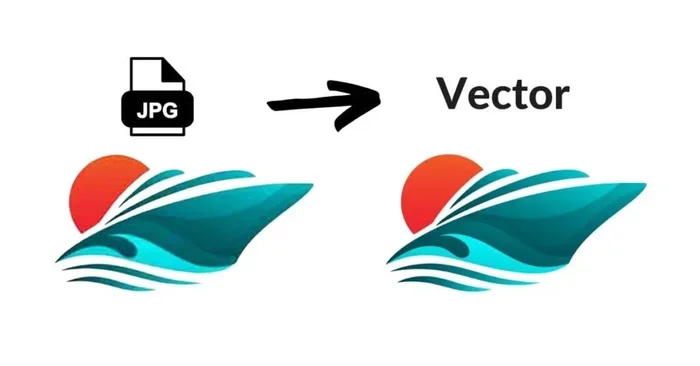
Converting a jpeg to a vector in Photoshop is simpler than most people think. This guide walks you through every method, from using the Pen Tool to Image Trace features. You will learn how to turn a flat bitmap image into crisp vector graphics that scale without losing quality. Whether you are a designer or a beginner, these techniques will save you time and boost your workflow.
Have you ever tried to enlarge a jpeg image only to see it turn blurry and pixelated? That is one of the biggest frustrations with raster images. The good news is that you can fix this problem by converting your jpeg files into vector format. When you convert jpeg to vector in Photoshop, your image becomes resolution independent. This means you can scale it up to a billboard or shrink it down to a business card without any quality loss.
Many people think that vector conversion requires expensive software or advanced design skills. That is simply not true. Adobe Photoshop has built-in tools that make the process accessible to everyone. Whether you are working on a logo, an icon, or a simple illustration, this guide will show you exactly how to get it done. By the end of this article, you will have the confidence to tackle any jpeg-to-vector project.
The process of turning a bitmap image into vector artwork is called vectorization. It involves tracing the shapes and lines of your original image and converting them into mathematical paths. These paths are what give vector graphics their flexibility. Let us dive into the different methods you can use inside Photoshop to achieve this.
Key Takeaways
- Multiple Methods Available: Photoshop offers several ways to convert jpeg to vector, including the Pen Tool, Image Trace, and manual tracing techniques.
- Vector Graphics Scale Infinitely: Unlike jpeg files, vector images maintain perfect quality at any size, making them ideal for logos and print work.
- Image Trace Is a Powerful Tool: Photoshop’s Image Trace feature automates much of the vectorization process and works great for simple designs.
- Manual Tracing Gives Better Results: For complex images, using the Pen Tool or shape tools produces cleaner, more accurate vector artwork.
- Export in Multiple Formats: You can save your converted vector as SVG, EPS, or PDF depending on your needs.
- Practice Makes Perfect: The more you trace, the faster and more accurate your results will become.
📑 Table of Contents
- Understanding the Difference Between Jpeg and Vector
- Preparing Your Jpeg Image for Vectorization
- Method 1: Using the Pen Tool for Manual Tracing
- Method 2: Using Photoshop’s Image Trace Feature
- Method 3: Combining Photoshop with Adobe Illustrator
- Common Mistakes to Avoid When Converting Jpeg to Vector
- Quick Tips for Better Vectorization Results
- Best File Formats for Saving Your Vector
- Conclusion
Understanding the Difference Between Jpeg and Vector
Before we start converting files, it helps to understand what makes these two formats so different. A jpeg is a raster image made up of tiny squares called pixels. When you zoom in too much, those pixels become visible, and the image looks fuzzy. On the other hand, a vector graphic uses mathematical equations to define shapes, lines, and curves. This is why vector artwork stays sharp no matter how much you resize it.
What Is a Jpeg File?
A jpeg file is one of the most common image formats on the internet. It uses compression to keep file sizes small. This makes it great for photographs and complex images with lots of colors. However, that compression comes at a cost. Every time you save a jpeg, it loses a little bit of quality. And when you try to stretch it beyond its original size, the results are less than ideal.
What Is a Vector Graphic?
A vector graphic is built from paths rather than pixels. These paths are defined by points, lines, and curves. Common vector formats include SVG, EPS, and AI. Because they rely on math instead of a fixed grid of pixels, vector images can be scaled to any size without any quality loss. This is why logos, icons, and illustrations are almost always created in vector format.
Why Convert Jpeg to Vector?
There are many reasons to convert a jpeg into a vector. You might need to print a design at a large size. You might want to edit individual elements of an image. Or you might need a file format that works better with cutting machines like Cricut or Silhouette. No matter the reason, the vectorization process gives you far more flexibility than a standard raster image ever could.
Preparing Your Jpeg Image for Vectorization
Not all jpeg images are created equal when it comes to vector conversion. A high-quality image with clean lines and simple colors will give you much better results than a blurry, cluttered photo. Before you start, take a moment to prepare your file properly.
Choose the Right Source Image
The first step is selecting the right jpeg to work with. Images with high contrast and distinct edges are the easiest to convert. Think of logos, line art, or simple illustrations. Photographs with lots of gradients and subtle color changes are much harder to vectorize and may not produce clean results.
Clean Up the Image
Before you begin the conversion, it is a good idea to clean up your jpeg. Use Photoshop’s adjustment tools to increase contrast if needed. You can also use the clipping path technique to remove backgrounds. The cleaner your starting image, the smoother your vectorization process will be.
Check the Resolution
While vector images are resolution independent, your starting jpeg should still be as high quality as possible. A higher resolution image gives the tracing tools more detail to work with. Try to use images that are at least 1000 pixels wide for best results.
Method 1: Using the Pen Tool for Manual Tracing
The Pen Tool is the most precise way to convert jpeg to vector in Photoshop. It takes a bit more time, but the results are worth it. This method gives you complete control over every path and curve in your design.
Step-by-Step Guide to Using the Pen Tool
Here is how to trace your image manually using the Pen Tool:
- Open your jpeg file in Photoshop.
- Create a new layer above the background. This keeps your original image safe.
- Select the Pen Tool from the toolbar on the left.
- Zoom in on a section of your image and start placing anchor points along the edges.
- Click and drag to create smooth curves between points.
- Continue tracing the entire shape or outline.
- Once you close the path, fill it with the appropriate color.
- Repeat the process for each section of your image.
Tips for Better Pen Tool Results
Mastering the Pen Tool takes practice. Start with simple shapes before moving on to complex designs. Use fewer anchor points for smoother curves. If a path does not look right, you can adjust the handles at any time. Also, make sure your vector artwork layers are organized by naming them clearly. This saves you a lot of frustration later when you need to make edits.
When to Use the Pen Tool Method
The Pen Tool method works best for images with bold, clean lines. Logos, typography, and simple illustrations are ideal candidates. If your image has hundreds of tiny details, this method can be very time-consuming. In those cases, you might want to try a different approach.
Method 2: Using Photoshop’s Image Trace Feature
If you want a faster way to convert jpeg to vector, the Image Trace feature is a great option. While Photoshop does not have a dedicated “Image Trace” button like Adobe Illustrator, you can achieve similar results using the vectorization tools available in the software.
How to Access Tracing Options in Photoshop
Photoshop offers several ways to automate the tracing process. The most common approach involves using filters and shape tools together. Here is a workflow you can follow:
- Open your jpeg image in Photoshop.
- Duplicate the background layer so you have a copy to work with.
- Go to Filter and select Threshold. This converts your image to black and white.
- Adjust the threshold slider until the edges of your image are clearly defined.
- Use the Magic Wand Tool to select the white areas.
- Delete the selected white areas to reveal a transparent background.
- Go to the Paths panel and choose Make Work Path from your selection.
- Save the path as a work path and then export it as a vector format.
Limitations of Automated Tracing in Photoshop
It is important to understand that Photoshop is primarily a raster-based editor. Its tracing capabilities are not as advanced as Illustrator’s Image Trace feature. You may need to do some manual cleanup after using automated methods. The results can vary depending on the complexity of your original image. For simple designs, the automated approach works well. For detailed artwork, manual tracing will give you better results.
Method 3: Combining Photoshop with Adobe Illustrator
Sometimes the best approach is to use both Photoshop and Illustrator together. This is especially true for complex images that need both precise raster editing and clean vector paths.
Why Use Both Programs Together?
Photoshop excels at editing and preparing raster images. Illustrator is the industry standard for creating and refining vector graphics. By combining the strengths of both programs, you can achieve professional-quality results. You can use Photoshop to clean up your jpeg, then send it to Illustrator for the actual vectorization.
Step-by-Step Workflow
- Open your jpeg in Photoshop and make any necessary adjustments.
- Increase contrast, remove the background, and clean up the image.
- Save the file and open it in Adobe Illustrator.
- Use Illustrator’s Image Trace feature to automatically convert the image to vector.
- Adjust the trace settings to get the best results.
- Expand the trace to convert it into editable vector paths.
- Save the final file as an SVG or EPS.
Exporting Your Vector File
Once your image is vectorized, you need to save it in the right format. SVG is the most popular format for web use. EPS is great for print work and professional design projects. PDF also works well for sharing vector files with clients or collaborators. Make sure you always keep a copy of your original jpeg in case you need to start over.
Common Mistakes to Avoid When Converting Jpeg to Vector
Even experienced designers make mistakes during the vectorization process. Knowing what to avoid can save you a lot of time and frustration.
Starting with a Low-Quality Image
One of the biggest mistakes is trying to vectorize a blurry or low-resolution jpeg. The tracing tools need clear edges and defined shapes to work properly. Always start with the highest quality source image you can find.
Skipping the Cleanup Step
Many people jump straight into tracing without preparing their image first. Taking a few minutes to adjust contrast, remove backgrounds, and clean up noise will save you hours of editing later. Think of it as setting yourself up for success.
Overcomplicating Simple Designs
Not every image needs a perfectly detailed vector trace. For simple shapes and logos, a basic trace with minimal detail often looks better than an overly complex one. Keep your vector artwork clean and streamlined.
Ignoring Color Management
When you convert a jpeg to vector, colors can sometimes shift. Pay attention to your color settings in Photoshop. Use the Eyedropper Tool to sample exact colors from your original image. This ensures your final vector matches the original as closely as possible.
Quick Tips for Better Vectorization Results
Here are some practical tips that will help you get the best results every time you convert jpeg to vector in Photoshop:
- Use Smart Guides: Turn on Smart Guides in Photoshop to help you align your paths more accurately.
- Work in Sections: Tracing your image one section at a time keeps things manageable and reduces mistakes.
- Save Frequently: Save your work often. Vector projects can be complex, and you do not want to lose progress.
- Use Layer Groups: Organize your vector layers into groups based on color or section. This makes editing much easier.
- Zoom In and Out: Regularly zoom in to check detail and zoom out to see the overall composition.
- Practice with Simple Images First: Start with basic shapes and simple logos before tackling complex artwork.
- Compare Regularly: Keep your original jpeg visible on a separate layer so you can compare your vector trace side by side.
Best File Formats for Saving Your Vector
Once you have successfully converted your jpeg to vector, you need to save it in the right format. Different formats serve different purposes, so choosing the correct one matters.
| Format | Best For | Supports Transparency |
|---|---|---|
| SVG | Web graphics, icons, and responsive design | Yes |
| EPS | Print work, professional design projects | Yes |
| Sharing vector files with clients | Yes | |
| AI | Editing in Adobe Illustrator | Yes |
SVG is the most versatile format for web use. It is supported by all modern browsers and can be styled with CSS. EPS is the go-to format for professional printing and is widely used in the design industry. PDF is great for sharing files with people who may not have specialized design software. Choose the format that best fits your needs.
Conclusion
Converting a jpeg to a vector in Photoshop opens up a world of creative possibilities. You get the freedom to scale your designs without any quality loss. You can edit individual elements with precision. And you can work with formats that are perfect for both print and digital projects. Whether you use the Pen Tool for manual tracing, take advantage of automated tracing options, or combine Photoshop with Illustrator, the key is to practice and find the workflow that works best for you.
Remember that every image is different, and there is no single perfect method for all vectorization tasks. Start with the preparation steps, choose the right method for your image, and do not be afraid to experiment. The more you work with convert jpeg vector Photoshop techniques, the more comfortable and efficient you will become. Your designs will look sharper, your workflow will be faster, and your results will be more professional than ever before.
Now that you have all the tools and knowledge you need, it is time to put them into practice. Pick a jpeg image, open Photoshop, and start your first vectorization project today. You will be amazed at how satisfying it is to transform a flat, pixelated image into a clean, scalable vector graphic.
Frequently Asked Questions
Can Photoshop convert jpeg to vector?
Yes, Photoshop can convert jpeg files to vector format using several methods. You can use the Pen Tool for manual tracing, apply threshold and path tools for semi-automated conversion, or combine Photoshop with Illustrator for more complex projects. Photoshop is not a dedicated vector program, but it has powerful tools that make vectorization possible.
What is the easiest way to convert jpeg to vector in Photoshop?
The easiest method is using the threshold filter combined with the Magic Wand Tool and Paths panel. This semi-automated approach works well for simple images with bold lines and solid colors. For more complex designs, the Pen Tool gives you the most control and the best results.
Can I convert a photograph jpeg to vector?
You can, but the results depend on the complexity of the photo. Simple photographs with solid colors and clear edges convert well. Highly detailed photos with lots of gradients and subtle color changes are much harder to vectorize and may require significant manual cleanup after conversion.
What file format should I save my vector in?
SVG is the best format for web use because it is widely supported and can be styled with CSS. EPS is ideal for print work and professional design projects. PDF works well for sharing files with clients. Choose the format based on how you plan to use your vector graphic.
Do I need Adobe Illustrator to convert jpeg to vector?
No, you do not need Illustrator to convert jpeg to vector in Photoshop. Photoshop has all the tools you need for basic and intermediate vectorization. However, Illustrator does offer more advanced tracing features and is the preferred tool for complex vector projects. Using both programs together gives you the best of both worlds.
Will my vector image lose quality when I resize it?
No, that is the whole point of vector graphics. Unlike jpeg files that become pixelated when enlarged, vector images use mathematical paths that scale perfectly to any size. This is why logos, icons, and illustrations are almost always created in vector format. Your converted vector will look crisp whether it is printed on a business card or a billboard.