Components of an Email Address Explained for Beginners
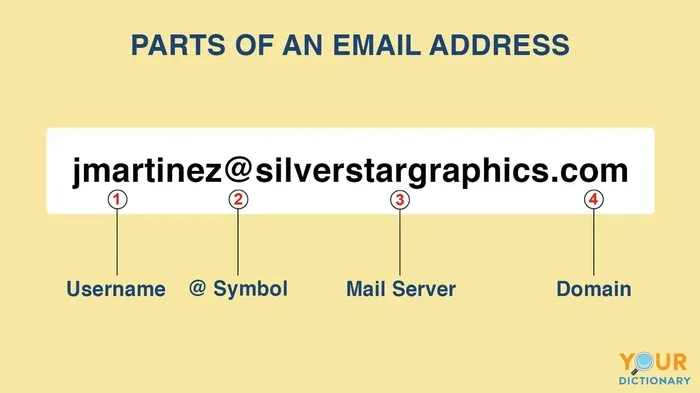
Every email address has three core components of an email address: the local part, the @ symbol, and the domain. Understanding these parts helps you create better email accounts, troubleshoot delivery issues, and communicate more effectively online. This guide walks you through each piece step by step.
Have you ever wondered what makes up an email address? It is not just a random string of letters and symbols. Every email address follows a specific structure that helps messages travel across the internet and land in the right inbox. In this guide, we will break down the components of an email address in the simplest way possible.
Whether you are new to email or just want to understand how it works under the hood, this article has you covered. We will look at each piece, explain what it does, and give you real-world examples. By the end, you will never look at an email address the same way again.
Let us start with the basics and build our way up. No tech jargon. No confusing terms. Just clear, friendly explanations that anyone can follow.
Key Takeaways
- The local part is the username that comes before the @ symbol and identifies your mailbox.
- The @ symbol acts as a separator that tells mail servers where to route your message.
- The domain tells the email system which server or organization hosts your account.
- Top-level domains like .com or .org give your email address its final extension and credibility.
- Subdomains can organize email addresses within a larger domain for businesses and teams.
- Understanding email syntax helps you avoid common mistakes and improve email delivery rates.
- Email address components remain consistent across all email providers and platforms.
📑 Table of Contents
- What Are the Components of an Email Address?
- The Local Part: Your Email Identity
- The @ Symbol: The Bridge Between Sender and Receiver
- The Domain: Where Your Email Lives
- Top-Level Domains and Subdomains Explained
- How Email Addresses Work Behind the Scenes
- Common Email Address Formats and Examples
- Conclusion
What Are the Components of an Email Address?
An email address has three main parts. Think of it like a mailing address for the digital world. Just as a physical address needs a house number, a street name, and a city, an email address needs a few specific pieces to work correctly.
Here are the three core email address parts:
- The local part (also called the username or mailbox)
- The @ symbol (the at sign that separates the local part from the domain)
- The domain (which includes the domain name and the top-level domain)
Together, these pieces form the complete email structure. A typical email address looks like this:
In this example, “john.doe” is the local part, “@” is the separator, and “example.com” is the domain. Each part plays a unique role in making sure your message reaches the right person. Let us now dive deeper into each one.
Why Understanding Email Anatomy Matters
You might be thinking, “Why do I need to know this?” Great question. Understanding the email anatomy helps you in several practical ways. First, it makes it easier to create professional email addresses for yourself or your business. Second, it helps you troubleshoot when emails bounce or fail to deliver. Third, it gives you a better sense of online security and how email routing works.
When you know how the pieces fit together, you can spot fake or suspicious email addresses more easily. This is a valuable skill in today’s world of phishing and spam. So let us take a closer look at each component.
The Local Part: Your Email Identity
The local part is everything that comes before the @ symbol. It is also known as the email username or the mailbox name. This is the part that identifies you specifically within a domain.
For example, in the address [email protected], “sarah.smith” is the local part. It is your personal identifier within the company.org domain.
What Characters Can You Use in the Local Part?
The local part allows a wide range of characters. You can use:
- Letters (a through z)
- Numbers (0 through 9)
- Dots (.) — but not at the start or end
- Underscores (_)
- Hyphens (-)
- Plus signs (+) for email filtering
There are some rules, though. You cannot use spaces or special characters like exclamation marks or question marks in the local part. Also, the local part is case-insensitive in most systems. That means “John” and “john” usually point to the same mailbox.
Creative Ways to Use the Local Part
Many people get creative with their local part. Some use their full name, while others add numbers or dots to make it unique. For instance, you might see addresses like [email protected] or [email protected].
One handy trick is using the plus sign for email filtering. If your address is [email protected], you can sign up for a newsletter with [email protected]. Then you can set up filters to keep that email separate from your main inbox. This is a great way to stay organized without needing multiple accounts.
The @ Symbol: The Bridge Between Sender and Receiver
The @ symbol is the small but mighty separator that makes email addresses work. It sits right between the local part and the domain. Without it, the email system would not know where one part ends and the other begins.
The @ symbol is also called the “at” sign. It tells the mail server, “The user on the left belongs to the domain on the right.” This simple piece of punctuation is what makes email delivery possible across the entire internet.
A Brief History of the @ Symbol in Email
Ray Tomlinson, the inventor of email in 1971, chose the @ symbol to separate the user from the host computer. He picked it because it was rarely used in regular text at the time. This clever choice has stood the test of time and remains a core part of email syntax today.
The @ symbol is universal. Every email provider, from Gmail to Yahoo to custom corporate servers, uses it the same way. It is one of the few things in the digital world that truly connects everyone.
Common Mistakes with the @ Symbol
One of the most frequent typos is forgetting the @ symbol entirely. An address like “johndoeexample.com” will not work. Another common mistake is using the wrong symbol, like a lowercase “a” or the letter “v” that looks similar to @ in some fonts.
Always double-check that your @ symbol is present and correct before hitting send. It is a tiny detail that makes a huge difference in email routing and delivery.
The Domain: Where Your Email Lives
The domain is the part of the email address that comes after the @ symbol. It tells the email system which server or organization handles mail for that address. The domain itself has two main parts: the domain name and the top-level domain.
In the address [email protected], “mybusiness.co.uk” is the full domain. Let us break that down further.
Domain Name
The domain name is the main part of the domain, like “mybusiness” or “gmail.” It usually represents a brand, a person, or an organization. When you register a domain name, you are essentially claiming a piece of internet real estate.
Domain names must be unique. No two email addresses can have the exact same full domain and local part combination. This uniqueness is what prevents confusion and ensures every message reaches the right destination.
Mail Servers and Email Delivery
Behind every domain is a mail server. When someone sends you an email, the mail server uses the domain to figure out where to deliver the message. It looks up the domain’s mail exchange (MX) records, which point to the specific server that handles incoming mail for that domain.
This whole process happens in seconds. The SMTP protocol (Simple Mail Transfer Protocol) is the set of rules that governs how email moves from sender to receiver. Understanding this helps you appreciate how the components of an email address work together in real time.
Top-Level Domains and Subdomains Explained
Now let us look at the end of the domain. The top-level domain, or TLD, is the last part of the email address, like “.com,” “.org,” or “.net.” It tells you the general category or country of the domain.
Types of Top-Level Domains
There are many types of TLDs to choose from. Here are some of the most common ones:
- .com — Commercial businesses and general use
- .org — Organizations, often nonprofits
- .net — Network-related services
- .edu — Educational institutions
- .gov — Government agencies
- .co.uk — United Kingdom-based domains
- .io — Tech startups and companies
Each TLD serves a different purpose, but they all function the same way in an email address. The TLD is the final piece that completes the domain portion of the email format.
What Are Subdomains?
A subdomain is a smaller section within a larger domain. For example, in the address [email protected], “mail” is a subdomain of “company.com.”
Businesses often use subdomains to organize their email addresses. A company might have [email protected], [email protected], and [email protected]. Each of these uses the same domain but different local parts to identify the department.
Subdomains can also help with email deliverability. Some email providers trust domains that use subdomains for specific purposes, like mailing lists or transactional emails.
How Email Addresses Work Behind the Scenes
Now that you know the individual pieces, let us see how they all come together. When you hit send on an email, a fascinating process kicks into action.
The Email Delivery Process
Here is a simplified look at what happens when you send an email:
- Your email client (like Gmail or Outlook) reads the email address components of the recipient.
- It identifies the domain part and queries the DNS (Domain Name System) for MX records.
- The DNS returns the mail server address for that domain.
- Your email client connects to that mail server using the SMTP protocol.
- The message is delivered to the recipient’s mailbox on the server.
- The recipient opens their email client and retrieves the message.
This entire process takes just a few seconds. And it all starts with the correct format of the email address you typed.
The Role of DNS in Email
DNS is like the phonebook of the internet. When an email server needs to deliver a message, it asks DNS, “Where do I send mail for this domain?” DNS responds with the MX records, which point to the correct mail server.
If the domain part of the email address is wrong or misspelled, DNS cannot find the right server, and the email bounces back. This is why accuracy in the domain portion is so important.
Why Email Format Matters
Getting the email format right is not just about sending messages. It also affects your credibility. A properly formatted email address looks professional and trustworthy. A misspelled or oddly formatted address can raise red flags with spam filters and make recipients hesitant to engage.
For businesses, using a custom domain email (like [email protected]) instead of a free email service builds trust and strengthens your brand. The domain part of your email address plays a big role in how others perceive you.
Common Email Address Formats and Examples
Let us put everything together with some practical examples. Here are several common email address formats you will encounter:
| Format | Example | Use Case |
|---|---|---|
| [email protected] | [email protected] | Professional and corporate emails |
| [email protected] | [email protected] | Simple and clean personal emails |
| [email protected] | [email protected] | Email filtering and organization |
| [email protected] | [email protected] | Business departments and teams |
| [email protected] | [email protected] | Generic organizational addresses |
Each format serves a different purpose. The key is to choose a format that is easy to remember, professional, and fits your needs.
Quick Tips for Creating a Great Email Address
- Keep it simple and easy to spell
- Avoid numbers and special characters unless necessary
- Use your name or your brand name when possible
- Consider using the plus sign trick for email filtering
- Choose a reputable domain extension like .com or .org
- Double-check for typos before sharing your address
Common Mistakes to Avoid
Even experienced email users make mistakes. Here are some pitfalls to watch out for:
- Using multiple consecutive dots in the local part (like [email protected])
- Starting or ending the local part with a dot
- Forgetting the @ symbol or using a similar-looking character
- Using spaces in any part of the address
- Choosing a domain that is too long or hard to spell
- Using free email addresses for business communications when a custom domain looks more professional
Avoiding these mistakes ensures your email address works smoothly and looks polished. It also helps with email deliverability, which is the ability to get your messages into the inbox instead of the spam folder.
Expert Insight: How Email Providers Handle the Components
Different email providers handle the components of an email address in slightly different ways. Gmail, for example, ignores dots in the local part. That means “john.smith” and “johnsmith” are treated as the same address. Outlook and Yahoo have their own rules too.
Understanding these provider-specific quirks can help you make the most of your email account. It also helps when you are setting up email for a domain and need to configure things correctly.
Conclusion
The components of an email address are simple but powerful. From the local part that identifies your mailbox, to the @ symbol that bridges sender and receiver, to the domain that directs your message to the right server — every piece has a job to do.
Now you know how email addresses are structured, why each part matters, and how to create addresses that are professional and effective. You also understand the behind-the-scenes process that makes email delivery possible in seconds.
Take what you have learned and apply it today. Create better email addresses, troubleshoot delivery issues with confidence, and communicate more effectively online. The world of email starts with understanding its building blocks, and now you have a solid grasp of every one of them.
Frequently Asked Questions
What are the three main components of an email address?
The three main components are the local part (your username), the @ symbol (the separator), and the domain (which includes the domain name and top-level domain). Together, these pieces form the complete email address structure.
Can I use special characters in the local part of my email address?
Most email providers allow letters, numbers, dots, underscores, and hyphens in the local part. Special characters like exclamation marks or spaces are generally not allowed. Always check with your email provider for their specific rules.
Why is the @ symbol important in an email address?
The @ symbol tells the mail server where to route your message. It separates the local part (you) from the domain (your email provider or organization). Without it, the email system cannot deliver your message correctly.
What is a top-level domain in an email address?
The top-level domain, or TLD, is the last part of the domain, such as .com, .org, or .net. It indicates the category or country of the domain and completes the email address format.
How does the domain part affect email delivery?
The domain tells the mail server which organization or provider handles the email. DNS looks up the domain’s MX records to find the correct mail server. If the domain is misspelled, the email will bounce back.
What is the difference between a domain and a subdomain in an email address?
The domain is the main part of the email address after the @ symbol, like example.com. A subdomain is a smaller section within that domain, like mail.example.com. Businesses use subdomains to organize email addresses for different teams or purposes.