Can I Use My Phone As A 3D Scanner For Realistic Results
Can I Use My Phone As A 3D Scanner for realistic results? Yes, absolutely. Modern smartphones come equipped with powerful cameras, LiDAR sensors, and advanced 3D scanning apps that turn your device into a capable smartphone 3D scanner. With the right techniques, you can capture detailed, textured 3D models of real-world objects in minutes.
Have you ever wondered if your everyday smartphone could double as a powerful 3D scanner? The answer might surprise you. Can I Use My Phone As A 3D Scanner is a question that more people are asking every single day. With the right apps and a bit of know-how, your phone can capture detailed 3D models of real-world objects.
Phone-based 3D scanning has come a long way in just the past few years. What once required expensive professional equipment can now happen right in your pocket. Whether you want to scan a toy, a piece of furniture, or even a full room, your smartphone 3D scanner capabilities are more impressive than most people realize.
In this guide, we will walk you through everything you need to know. You will learn how phone-based scanning works, which apps deliver the best results, and the simple steps you can follow to get started. We will also share practical tips that help you avoid common mistakes and achieve realistic 3D scan results every time.
Key Takeaways
- Your phone can scan objects in 3D: Both iPhone and Android devices support 3D scanning through built-in sensors and powerful apps.
- LiDAR and photogrammetry power phone scanning: iPhones use LiDAR scanners while Androids rely on photogrammetry for 3D reconstruction.
- The right app matters: Apps like Polycam, Kiri Engine, and Scaniverse deliver the best realistic 3D scan results.
- Lighting and technique are critical: Even lighting, overlapping passes, and consistent distance dramatically improve scan quality.
- Phone-scanned models have many uses: From 3D printing to AR experiences, your scanned models open up creative possibilities.
- Know the limitations: Reflective surfaces, very large objects, and microscopic details remain challenging for phone-based 3D capture.
📑 Table of Contents
- How Does Phone-Based 3D Scanning Work?
- Best Apps for 3D Scanning on Your Phone
- Step-by-Step Guide to Scanning Objects With Your Phone
- Tips for Getting Realistic 3D Scan Results
- Limitations of Phone-Based 3D Scanning
- What Can You Do With Phone-Scanned 3D Models?
- Final Thoughts on Using Your Phone as a 3D Scanner
How Does Phone-Based 3D Scanning Work?
Understanding how 3D scanning technology works on your phone starts with a few basic concepts. Your smartphone is far more capable than most people give it credit for. It packs powerful cameras, sensors, and processors that work together to capture the shape and texture of real objects.
The Role of Your Phone Camera and Sensors
When you start object scanning with your phone, the camera feeds visual data into the scanning app. But the camera alone does not do all the work. Modern phones come equipped with additional sensors that add depth and dimension to what the camera sees.
On iPhones, the LiDAR scanner plays a huge role. LiDAR stands for Light Detection and Ranging. It sends out thousands of invisible laser pulses and measures how long they take to bounce back. This creates a detailed depth map of the object or space you are scanning.
On Android devices, the process relies more heavily on the camera and software algorithms. Many Android 3D scanning apps use a technique called photogrammetry. This method takes dozens or even hundreds of photos from different angles and stitches them together into a 3D model.
Understanding Point Clouds and Mesh Generation
Behind every 3D capture lies a point cloud. A point cloud is a collection of thousands or millions of data points in space. Each point has X, Y, and Z coordinates that define its position. Together, these points form the basic shape of the object you are scanning.
Next comes mesh generation. The scanning software connects the dots in the point cloud to create a continuous surface. Think of it like connecting dots on a coloring page. The result is a 3D mesh that represents the outer surface of the object.
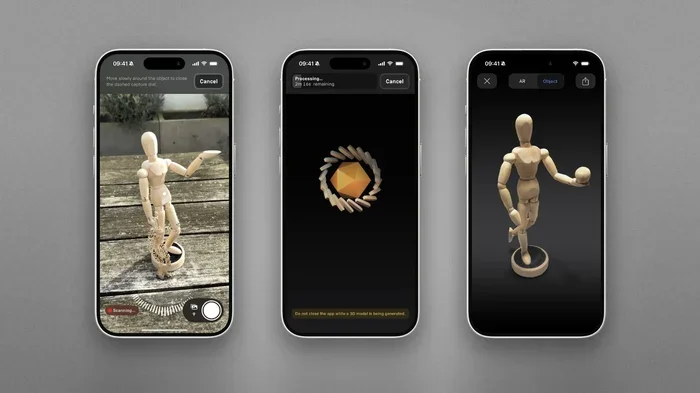
After the mesh is created, the app applies texture mapping. This step wraps the original photos onto the 3D surface. The final output is a realistic 3D model that looks almost identical to the real thing.
Some apps also offer real-time scanning, which lets you see the model take shape on your screen as you move the phone around the object. This feedback loop helps you adjust your scanning angle and ensure you capture every detail.
Best Apps for 3D Scanning on Your Phone
Not all 3D scanning apps are created equal. Some are free, some cost money, and some are designed for specific use cases. Choosing the right app makes a huge difference in the quality of your 3D capture results.
Top iPhone 3D Scanner Apps
If you have an iPhone with a LiDAR sensor, you are in luck. Apple’s 3D scanning technology works best on devices like the iPhone 12 Pro and later models. Here are some of the top options:
- Polycam: This app is one of the most popular 3D scanning apps available. It uses LiDAR for fast and accurate spatial scanning. You can scan objects, rooms, and even entire buildings. The app also supports 3D model export in multiple formats.
- Reality Composer: Built by Apple, this free tool lets you create 3D scenes using scanned objects. It works hand-in-hand with ARKit for AR scanning experiences. It is a great choice for beginners who want to explore 3D digitization without spending money.
- 3D Scanner App: This straightforward app focuses on simplicity. It uses the phone’s camera for surface scanning and generates clean 3D meshes. It is a solid choice for quick object scanning tasks.
Top Android 3D Scanning Apps
Android users have a wide range of options too. While most Android phones lack LiDAR, the software compensates with clever photogrammetry techniques:
- Polycam (Android version): Yes, Polycam works on Android as well. It uses the camera for 3D reconstruction and delivers impressive results. The app supports real-time scanning and lets you refine your model before exporting.
- Kiri Engine: This is a powerful free option for Android 3D scanning. It uses photogrammetry to create detailed models from photo sequences. Kiri Engine supports export to formats like OBJ, STL, and USDZ, making it 3D printing compatible.
- Scaniverse: Originally developed for iOS, Scaniverse now works on Android too. It offers real-time scanning with smooth mesh generation. The app is known for its user-friendly interface and fast processing speed.
Comparison: iPhone vs Android 3D Scanning
| Feature | iPhone (with LiDAR) | Android |
|---|---|---|
| Depth Sensing | LiDAR sensor for instant depth | Camera-based depth estimation |
| Scanning Speed | Fast real-time scanning | Slightly slower, photo-based |
| Accuracy | High accuracy for small objects | Good accuracy with careful technique |
| Best Apps | Polycam, Reality Composer | Kiri Engine, Scaniverse, Polycam |
| 3D Printing Ready | Yes, STL export supported | Yes, STL and OBJ export |
Free vs Paid 3D Scanning Apps
Many 3D scanning apps offer free versions with basic features. These free tiers are perfect for casual users who want to experiment with phone camera scanning. However, paid versions often unlock higher resolution exports, better texture quality, and advanced editing tools.
If you plan to use scanned models for professional work or 3D printing, investing in a premium app is usually worth it. The extra features give you more control over 3D model creation and help you achieve more realistic results.
Step-by-Step Guide to Scanning Objects With Your Phone
Scanning an object with your phone is easier than you might think. Follow these steps to get the best possible results from your smartphone 3D scanner.
Step 1: Prepare Your Object and Environment
Before you start object scanning, take a moment to prepare. Choose a well-lit area with soft, even lighting. Avoid harsh shadows and direct sunlight, as they can confuse the scanning sensors.
Place your object on a stable surface. If the object is shiny or reflective, try dusting it with a matte spray. Shiny surfaces cause glare, which leads to poor depth mapping and incomplete scans.
Step 2: Download and Open a 3D Scanning App
Download a reputable 3D scanning app from the App Store or Google Play. Open the app and familiarize yourself with the interface. Most apps guide you through the process with on-screen instructions.
Make sure your phone is fully charged or plugged in. 3D scanning can drain your battery quickly, especially during longer sessions.
Step 3: Start Scanning and Move Around the Object
Begin the scan and slowly move your phone around the object. Keep a consistent distance of about 1 to 2 feet. Move in a circular pattern, making sure to capture every angle.
Many apps show a live preview of the point cloud as you scan. Watch this preview to ensure you are capturing all areas. Go back and fill in any gaps you notice.
For the best results, take your time. Rushing through the scan is one of the most common mistakes people make. Slow and steady movements lead to cleaner 3D reconstruction.
Step 4: Review and Edit the Scan
Once the scan is complete, review the 3D model on your screen. Look for any holes, missing sections, or blurry textures. Most apps allow you to edit the model directly on your phone.
You can fill in gaps, smooth surfaces, and adjust colors. Some apps also let you crop out unwanted background elements. Take the time to clean up your model before exporting it.
Step 5: Export and Share Your 3D Model
When you are happy with the result, export the model in your preferred format. Common formats include OBJ, STL, and glTF. Each format serves a different purpose.
If you plan to 3D print your model, STL is the most widely supported format. For sharing online or using in AR applications, glTF or USDZ work best. Check your app’s export settings to make sure the resolution is high enough for your needs.
Tips for Getting Realistic 3D Scan Results
Getting realistic 3D scan results from your phone takes practice and a few proven techniques. Here are some expert tips that make a noticeable difference.
Use Even, Diffused Lighting
Lighting is the single most important factor in phone camera scanning. Harsh light creates strong shadows and bright spots that confuse the scanning algorithm. Diffused, even lighting gives the app the cleanest visual data to work with.
Try scanning near a large window on a cloudy day. The clouds act as a natural diffuser, creating soft, uniform light. If you are scanning indoors, turn on multiple lights from different angles to reduce shadows.
Overlap Your Scanning Passes
When moving around your object, overlap each pass by about 30 to 50 percent. This overlap gives the app enough reference points to stitch the images together accurately. Without sufficient overlap, the 3D reconstruction may have gaps or misaligned sections.
Think of it like taking a panorama photo. You need enough overlap between each shot for the final image to come together seamlessly. The same principle applies to surface scanning and 3D capture.
Keep a Consistent Distance
Varying your distance from the object too much can cause inconsistencies in the final model. Some parts may be overly detailed while others appear blurry or missing.
Try to maintain a steady distance throughout the scan. Most apps work best at a distance of 1 to 3 feet from the object. Mark this distance with a piece of tape on the floor if it helps you stay consistent.
Scan in Multiple Directions
Do not just walk around the object in one direction. Change your scanning angle and height. Capture the top, bottom, and sides of the object from multiple viewpoints.
This multi-angle approach improves the accuracy of depth mapping and ensures that every surface is captured. It is especially important for objects with complex shapes or hidden features.
Clean Up Your Model After Scanning
Raw scans often contain noise, stray points, and minor imperfections. Use the editing tools in your 3D scanning app to clean up the model. Remove unwanted background points and smooth out rough surfaces.
This post-processing step is what separates a mediocre scan from a realistic 3D model. Even a few minutes of cleanup can dramatically improve the final result.
Quick Tip: If your scan has holes or gaps, try rescanning just the missing areas. Hold your phone at the same distance and angle as the original scan, and let the app merge the new data with the existing model for seamless 3D reconstruction.
Limitations of Phone-Based 3D Scanning
While phone-based 3D scanning is incredibly convenient, it does have limitations. Understanding these helps you set realistic expectations and know when to consider other options.
Size and Complexity Constraints
Phone scanners work best on small to medium-sized objects. Scanning a tiny figurine or a coffee mug produces excellent results. But scanning a large building or a complex mechanical engine may push the limits of what your phone can handle.
Very large objects require multiple scans that are stitched together later. This process, called spatial scanning, can work but requires more skill and patience. The final 3D reconstruction may have visible seams or alignment issues.
Reflective and Transparent Surfaces
Shiny, reflective, and transparent objects are challenging for phone camera scanning. The camera sees reflections and refractions that confuse the scanning algorithm. This can result in distorted or incomplete 3D models.
If you need to scan glass objects or polished metal, consider applying a temporary matte coating. A light dusting of baby powder or scanning spray can help the camera capture accurate surface data for better 3D digitization.
Detail Resolution Compared to Professional Scanners
Professional 3D scanning technology uses high-powered lasers and precision sensors that capture microscopic details. Phone-based 3D capture cannot match this level of precision.
For most hobbyist and casual use cases, phone scanning is more than adequate. But if you need industrial-grade accuracy for engineering or medical applications, a dedicated scanner is still the better choice.
Processing Time and Battery Drain
3D scanning is computationally intensive. Your phone may slow down or overheat during long scanning sessions. The mesh generation and 3D reconstruction processes can take several minutes, even on powerful devices.
Always monitor your phone’s temperature and battery level during extended scans. Taking breaks between scanning sessions helps prevent overheating and preserves your phone’s longevity.
What Can You Do With Phone-Scanned 3D Models?
Once you have created a 3D model from your phone, the possibilities are surprisingly wide. Here are some of the most popular and practical uses.
3D Printing Your Scanned Objects
3D printing compatibility is one of the biggest draws of phone-based scanning. After you export your model as an STL file, you can send it to any 3D printer and bring your scan into the physical world.
This opens up amazing possibilities. Scan a favorite figurine and print a duplicate. Scan a broken appliance part and create a replacement. The 3D digitization process turns real-world objects into printable files in minutes.
Augmented Reality Experiences
Phone-scanned models work beautifully in AR scanning applications. You can place your scanned object into a real-world environment using apps like Adobe Aero or Apple’s Reality Composer.
This is incredibly useful for interior design, product visualization, and creative projects. Imagine placing a scanned piece of furniture in your living room to see how it fits before you buy it.
Game Development and Animation
Game developers and animators increasingly use phone camera scanning to create assets for their projects. A scanned 3D model can serve as the base for a character, prop, or environment element.
The surface scanning data provides realistic textures that save hours of manual modeling work. While the models may need some cleanup, the time saved is substantial.
Preservation and Documentation
3D reconstruction from phone scans is a powerful tool for preservation. Museums, historians, and archaeologists use 3D scanning technology to document artifacts and historical sites.
You can do the same at home. Scan a family heirloom, a piece of art, or a meaningful object. The 3D model becomes a permanent digital record that you can revisit, share, or print whenever you want.
Final Thoughts on Using Your Phone as a 3D Scanner
Can I Use My Phone As A 3D Scanner for realistic results? Absolutely yes. The 3D scanning technology built into modern smartphones is remarkably powerful and constantly improving. With the right app, good lighting, and a bit of patience, you can create impressive 3D models of real-world objects right from your pocket.
Start with simple objects and work your way up to more complex scans. Experiment with different apps to find the one that suits your needs best. Follow the tips we shared, and you will be surprised at how professional your results can look.
The world of 3D scanning is no longer limited to expensive equipment and specialized professionals. Your phone is a capable smartphone 3D scanner that opens up creative possibilities for hobbyists, designers, educators, and curious minds alike. Pick up your phone today and start exploring the exciting world of 3D capture and 3D model creation.
Frequently Asked Questions
Can I Use My Phone As A 3D Scanner Without Any Extra Equipment?
Yes, you can start 3D scanning with just your phone and a free app. Most modern smartphones have the cameras and processing power needed for basic object scanning. However, iPhones with LiDAR sensors produce more accurate results without any additional accessories.
Which Phone Is Best for 3D Scanning?
iPhones with LiDAR sensors, such as the iPhone 12 Pro and later models, are currently the best phones for 3D scanning. Android phones with high-quality cameras and powerful processors also work well, especially when paired with apps like Kiri Engine or Polycam.
How Accurate Are Phone-Based 3D Scans?
Phone-based 3D scanning accuracy has improved dramatically. For small to medium objects, phone scans can be impressively detailed and realistic. However, they cannot match the precision of professional-grade 3D scanning technology used in industrial and medical settings.
Can I 3D Print a Model Scanned With My Phone?
Absolutely. Most 3D scanning apps let you export your scanned model as an STL file, which is the standard format for 3D printing. You can then send the file to any 3D printer and bring your scanned object into the physical world.
Is 3D Scanning on a Phone Free?
Many 3D scanning apps offer free versions with solid features. Apps like Kiri Engine and Reality Composer are free to use. Premium versions of apps like Polycam unlock higher resolution exports and advanced editing tools for users who need more professional results.
What Are the Most Common Mistakes When Scanning With a Phone?
The most common mistakes include scanning in poor lighting, moving too quickly around the object, and not overlapping scanning passes enough. These errors lead to incomplete 3D reconstruction, gaps in the mesh, and blurry textures. Taking your time and following proper technique makes a huge difference.